Getting started
Beautyfire is built around how people shop for wigs: on a phone, comparing hairlines, lace and colour from several angles before they buy.
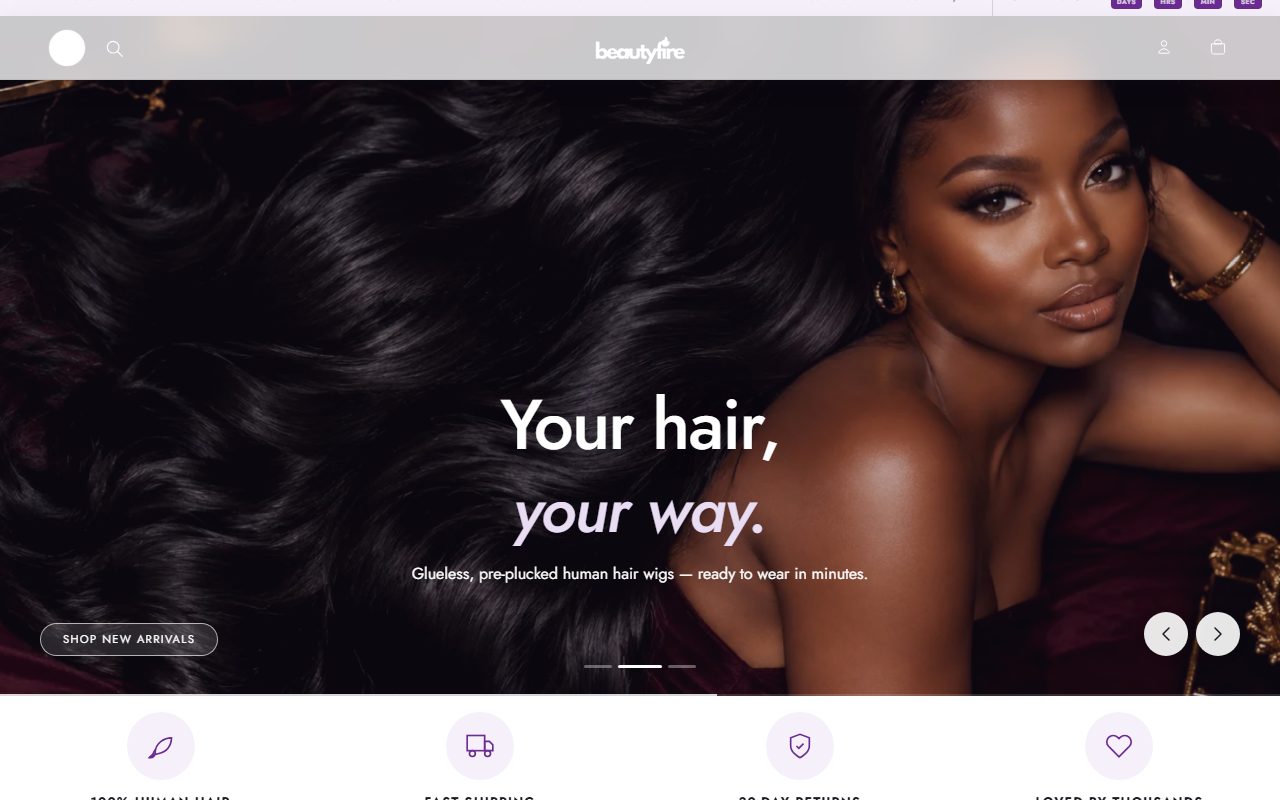
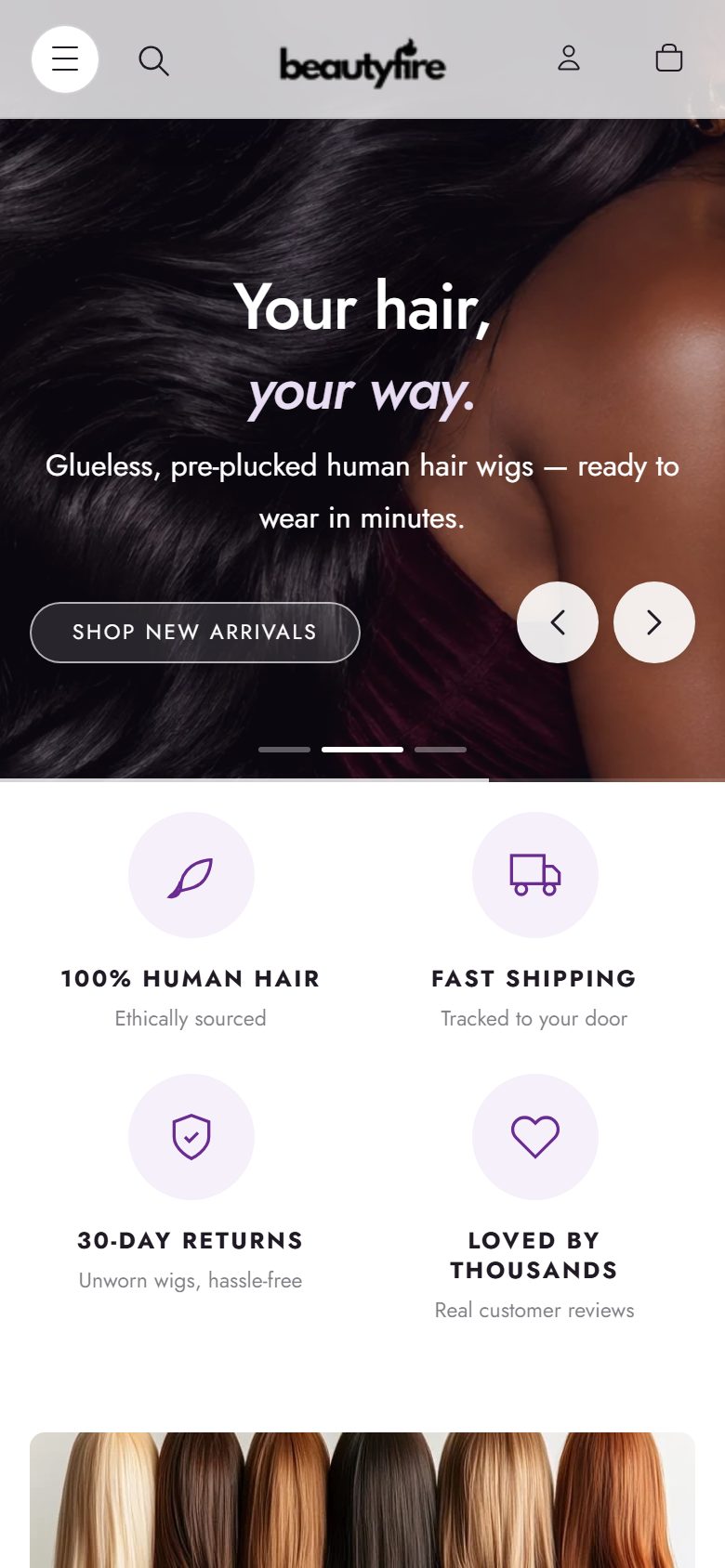
- Add your theme. In Shopify admin go to Online Store › Themes, add Beautyfire, then click Customize to open the theme editor.
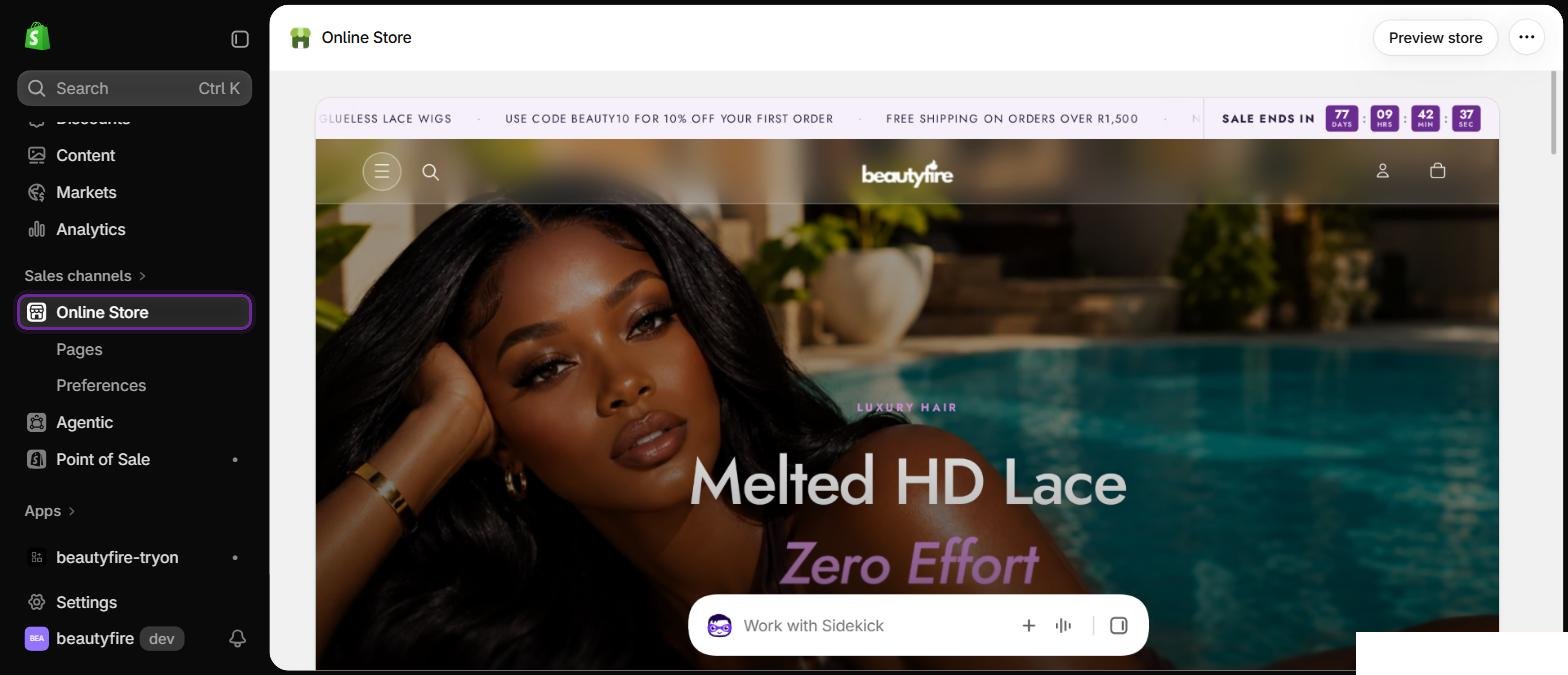
Shopify admin: click Online Store in the left menu to reach your themes. - Set your brand. Open Theme settings › Colors and Typography to apply your colours and fonts across every page. Upload your logo in Header › Logo image.
- Set up colour swatches. In Shopify admin, add a Color option to your wigs and give each value a swatch colour or image. Swatches then show on the product page, wig cards and the combo deal. See Product page.
- Build your home page. Click Add section in the left sidebar and pick from the section library. Drag sections to reorder them.
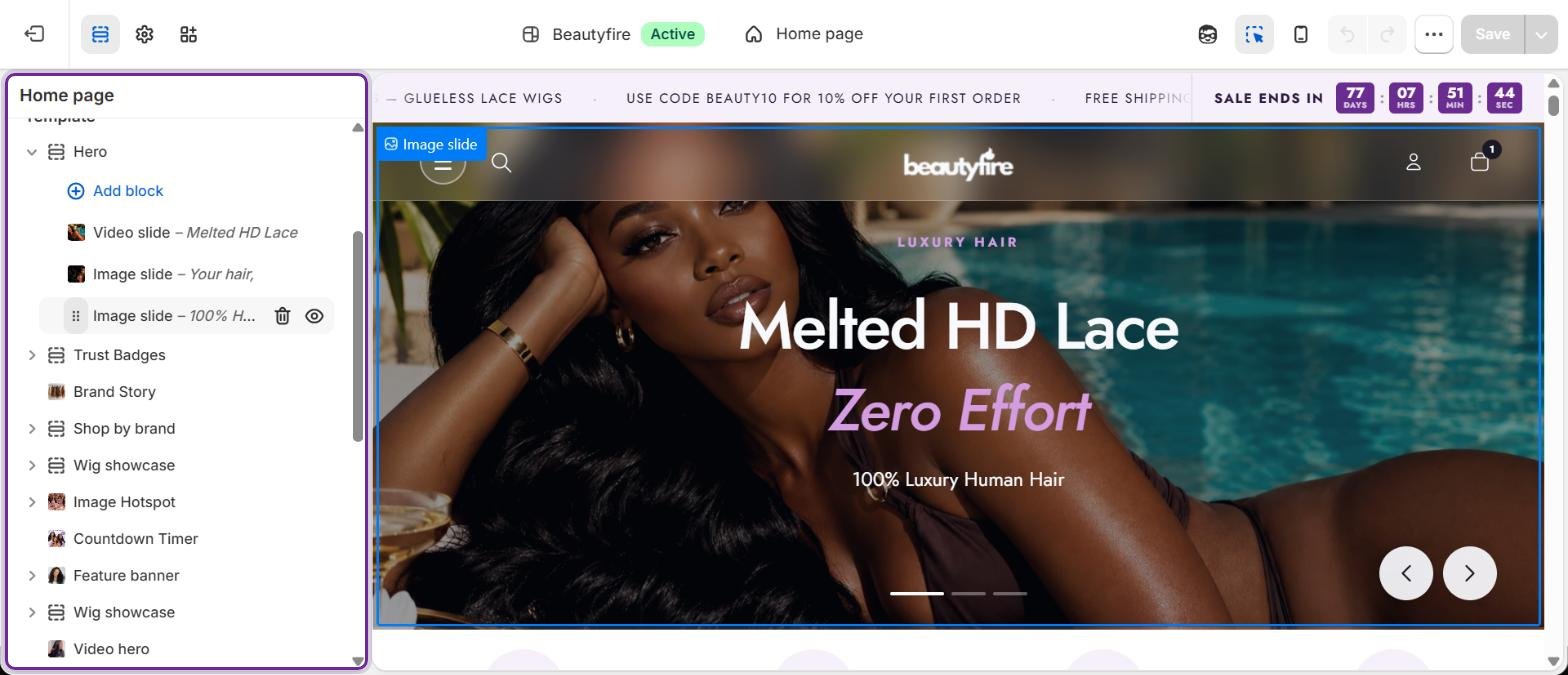
The theme editor. Left: the sections and blocks on the page. Right: a live preview of your store. 
Click Add block (or Add section) to choose what to add. Here: adding a slide to the Hero. 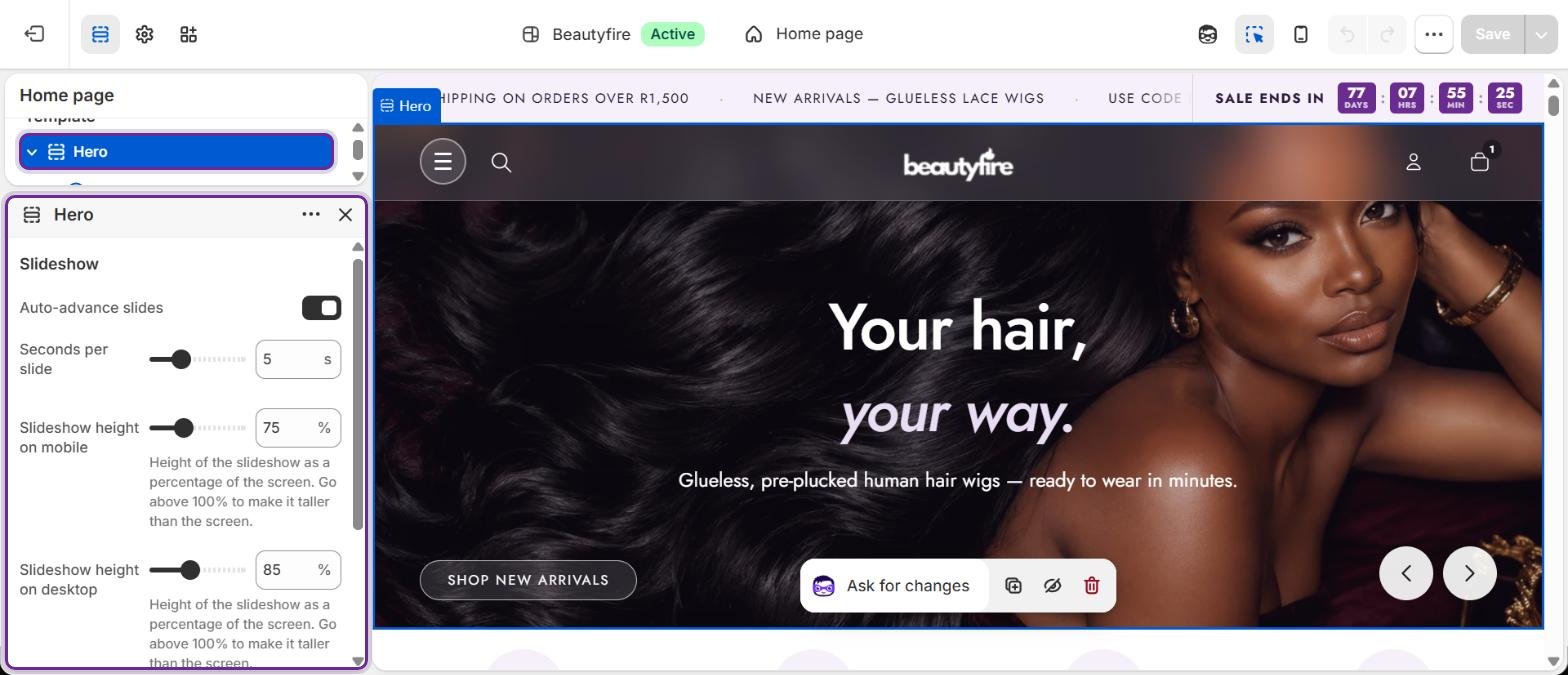
Click a section to open its settings. Changes show in the preview straight away; click Save at the top right when you are happy. - Connect menus. Create menus in Online Store › Navigation, then choose them in Header › Menu.
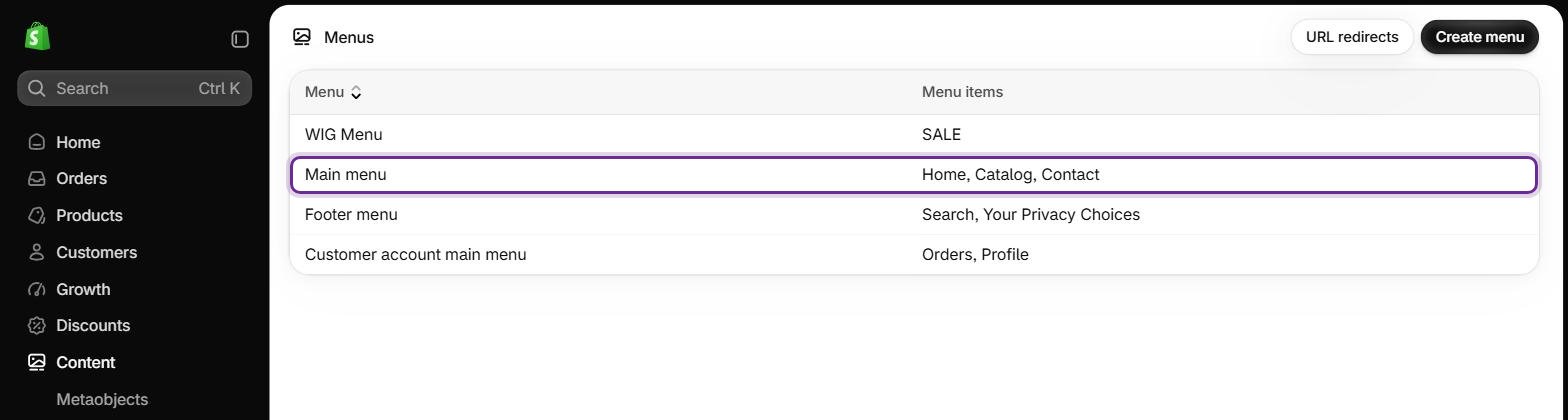
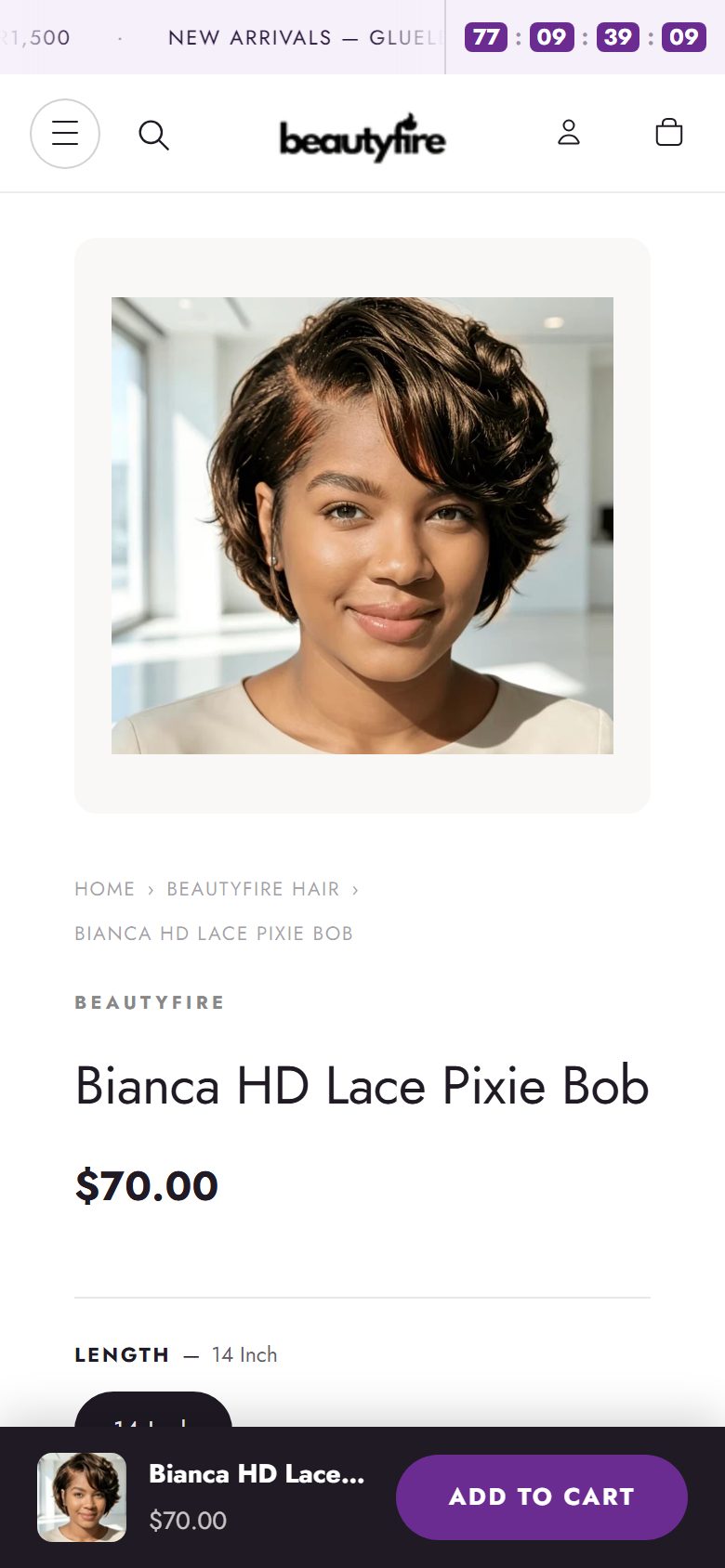
Content › Menus: the Main menu holds the links shown in the header menu. - Preview on a phone. Use the phone icon at the top of the theme editor. Every section has separate mobile settings where layout differs.
Theme settings
Open Theme settings with the gear icon at the top left of the theme editor. These settings apply to the whole store.
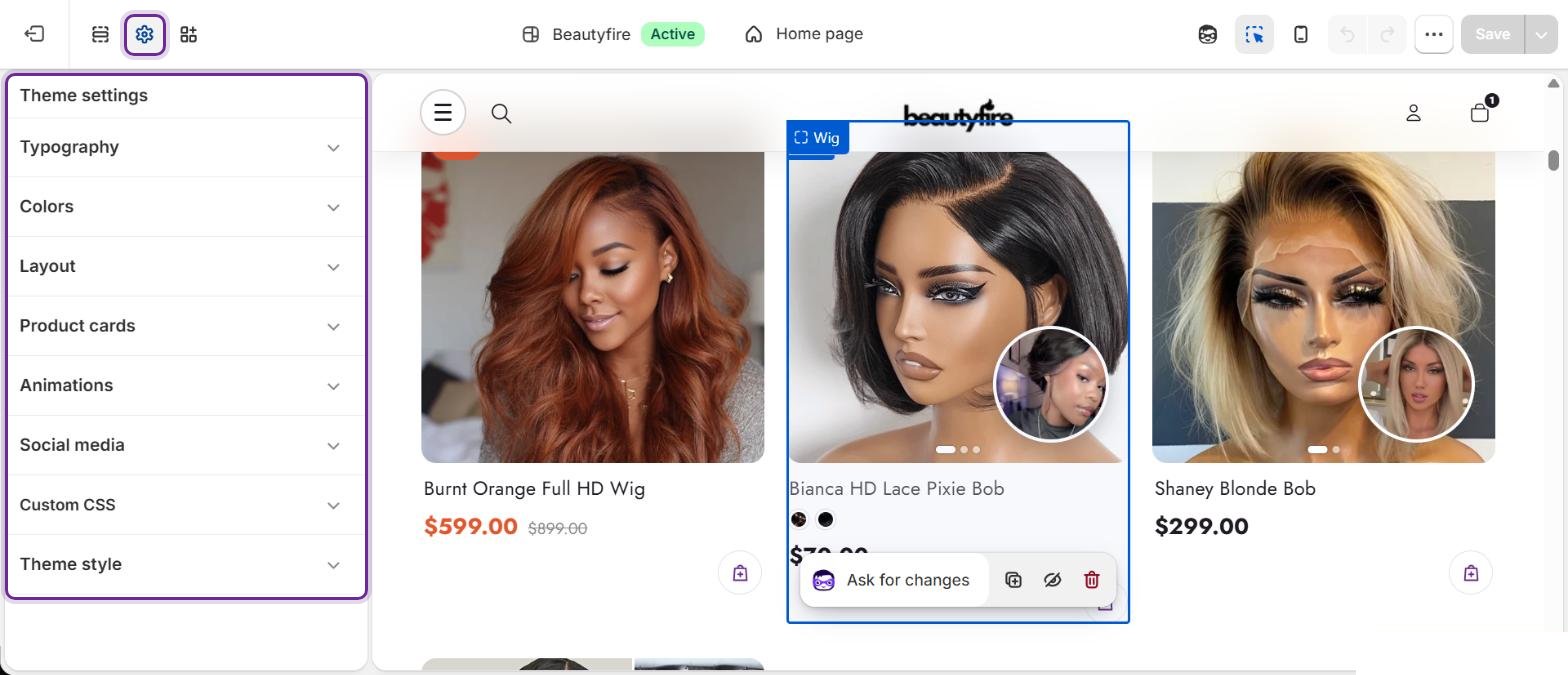
| Group | What you can change |
|---|---|
| Typography | Heading font, body font, body font size and heading text transform (for example all capitals). Fonts come from the Shopify font library and load quickly. |
| Colors | Primary, accent and secondary accent colours; background, text, surface and border colours; primary and secondary button colours; sale price and star rating colours. Many sections also have their own colour settings that override these. |
| Layout | Favicon, maximum page width, minimum page margin (the space at each side on phones), default section padding, button style and input corner radius. |
| Product cards | Second image on hover, star rating, colour dots, quick add button and an optional promo ribbon with text or image. |
| Animations | Turn scroll-in animations on or off and choose their style. Shoppers who ask their device to reduce motion never see them. |
| Social media | Instagram, Facebook, TikTok, Pinterest and YouTube links used in the footer and contact page. |
Header and announcement bar
Header
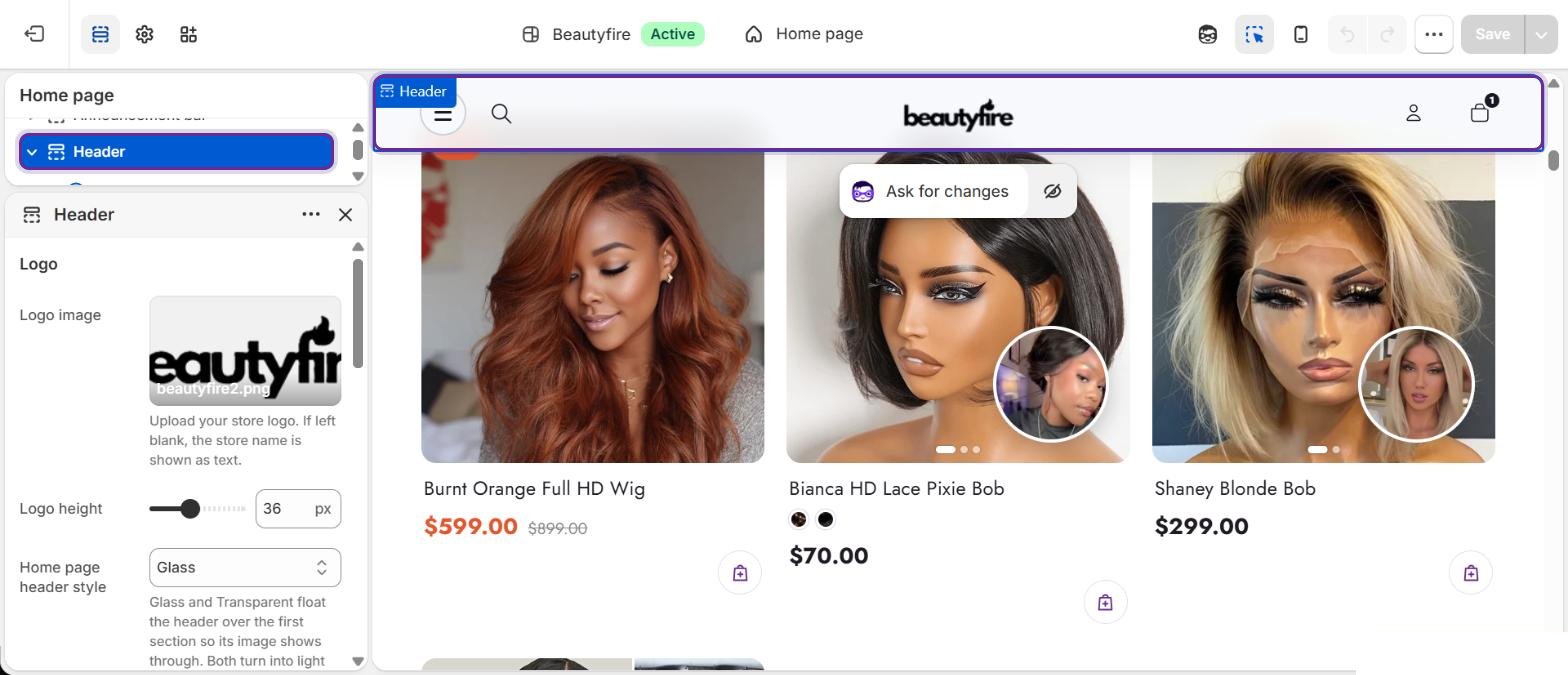
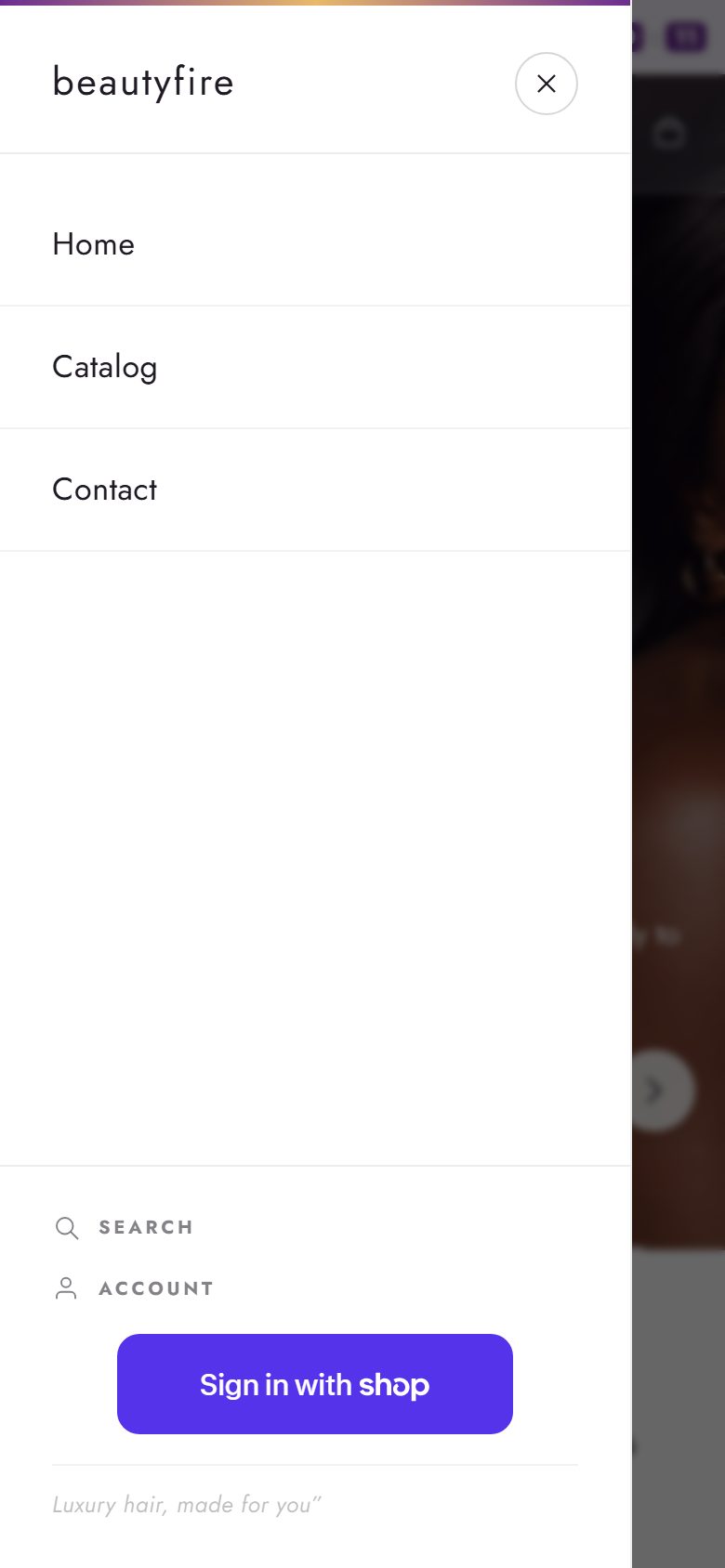
- Home page header style: Glass (frosted, floats over the first section), Transparent (floats over the first section and turns to glass when shoppers scroll) or Solid. Other pages always use a solid header.
- Menu: the main menu shows as links on desktop and in a slide-out drawer on phones. The account menu and a gift card link appear at the bottom of the phone drawer.
- Menu typography: pick a menu font, separate text sizes for the phone menu, phone sub-menu and desktop menu, a text style (as typed, UPPERCASE, Capitalize, lowercase), letter spacing and the phone menu text colour.
- Nav dropdown promo blocks add an image card inside a desktop dropdown menu.
Announcement bar

Add one Message block per message. They scroll across the top of every page. Turn on Sale countdown and enter an End date (YYYY-MM-DD) and End time (HH:MM, 24-hour) to show a live countdown badge. The badge hides itself when the time runs out.
Wig cards and colour dots
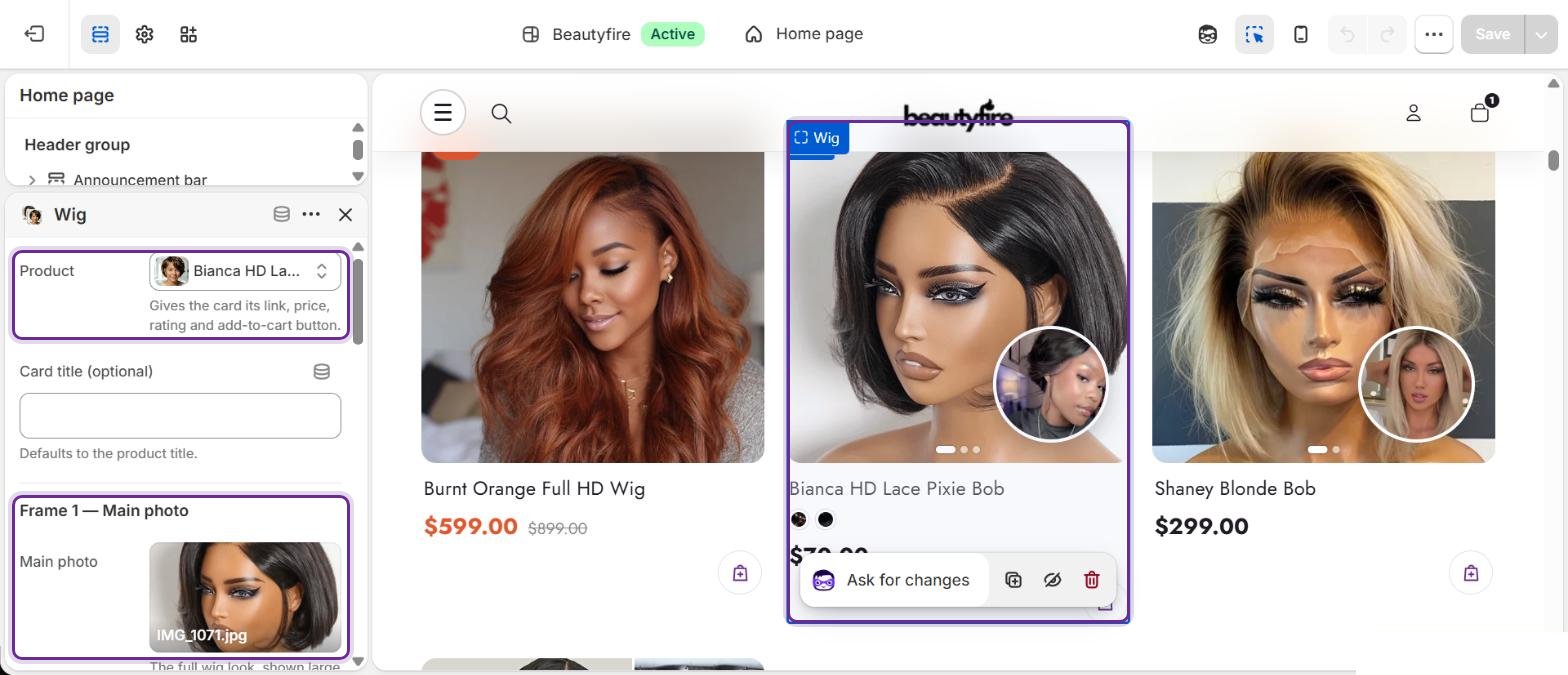
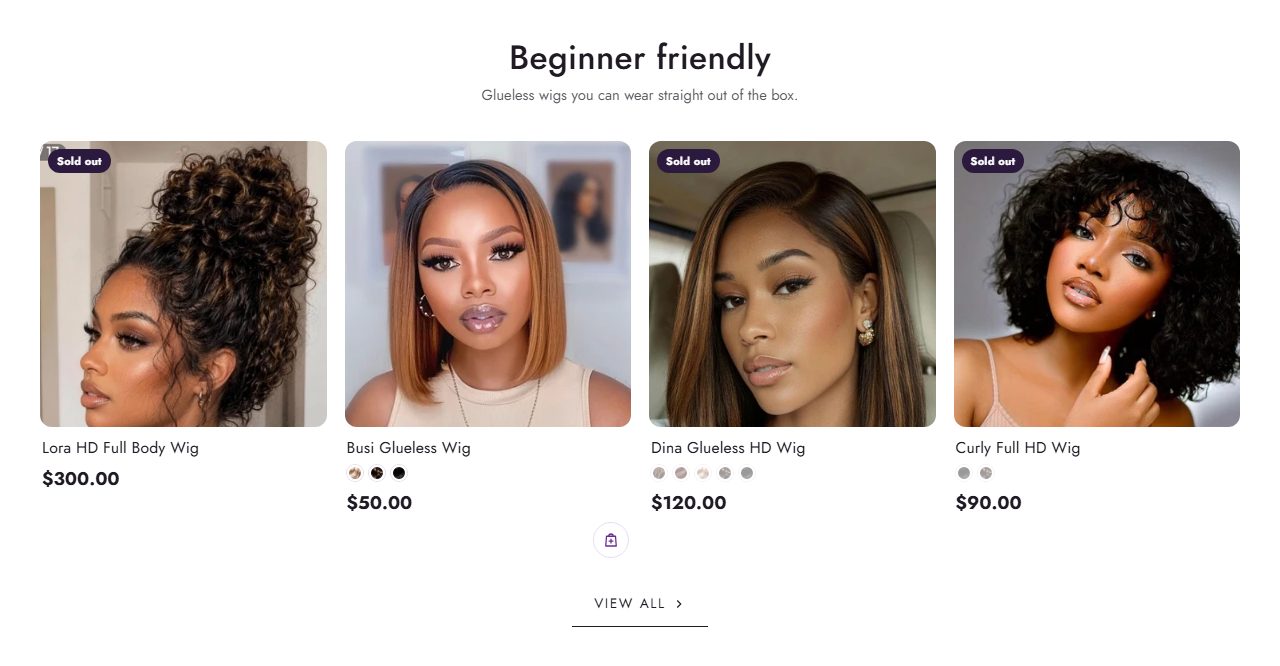
Product cards across the theme use the Beautyfire wig card, which shows a wig from several angles before the shopper opens it.
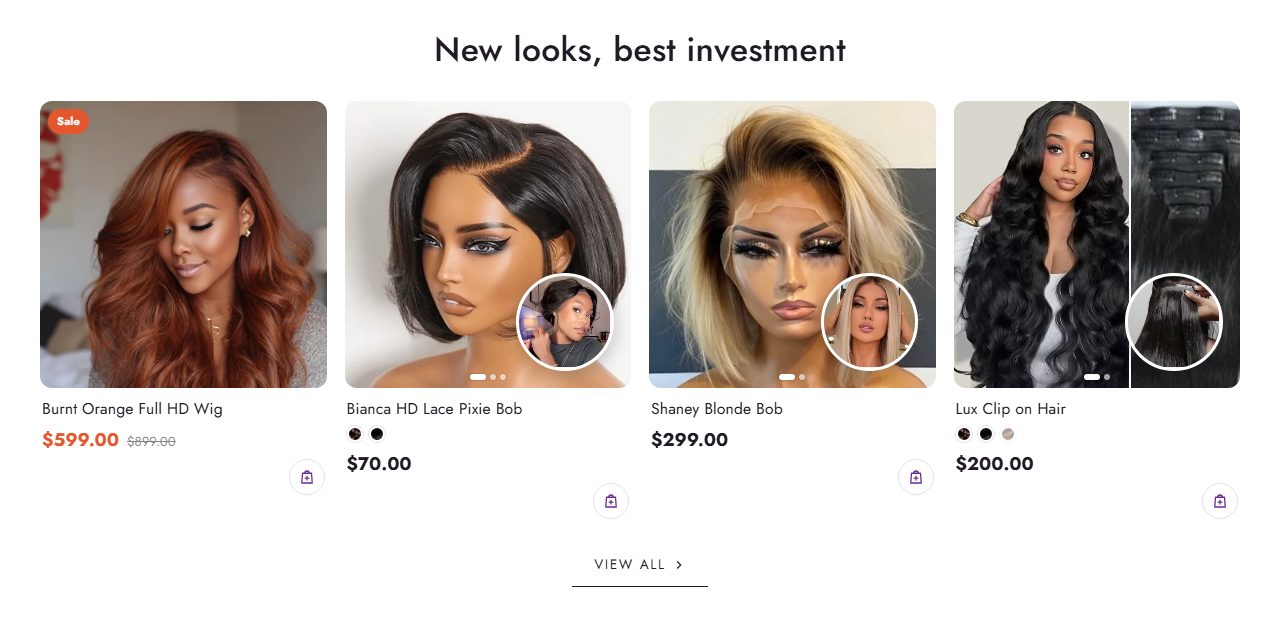
- Frame 1: the main photo.
- Frame 2: a second angle that appears on hover (desktop).
- Frame 3: a small round video in the corner, ideal for showing movement or the lace up close.
- Photo slider: add up to 5 extra photos, or turn on Also add the product's other photos. Shoppers swipe on phones; on desktop, arrows appear on hover.
- Colour dots: small circles for each colour the wig comes in. Turn them on in Theme settings › Product cards › Show colour dots.
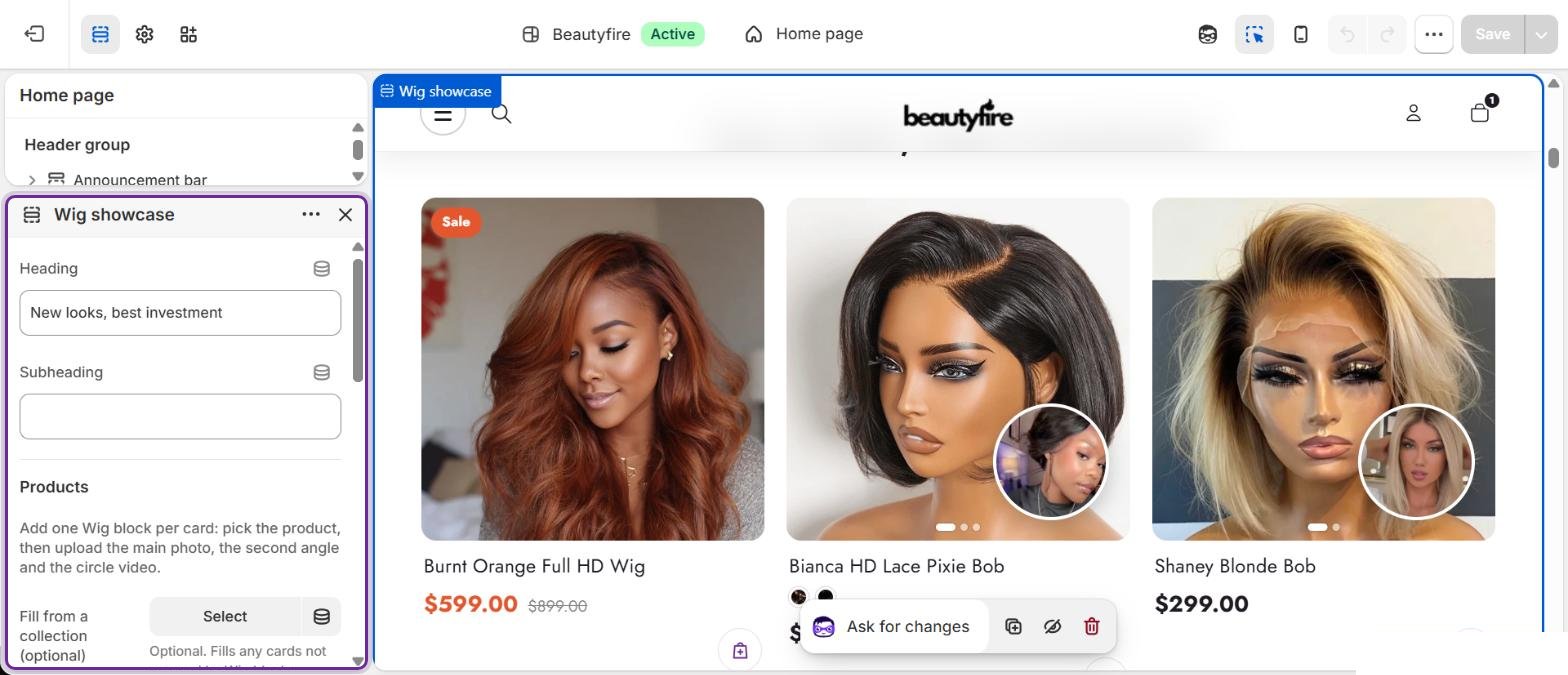
Frames are set per card in the Wig showcase and Wig feature sections. Everywhere else, cards use the product's own photos.
Product page
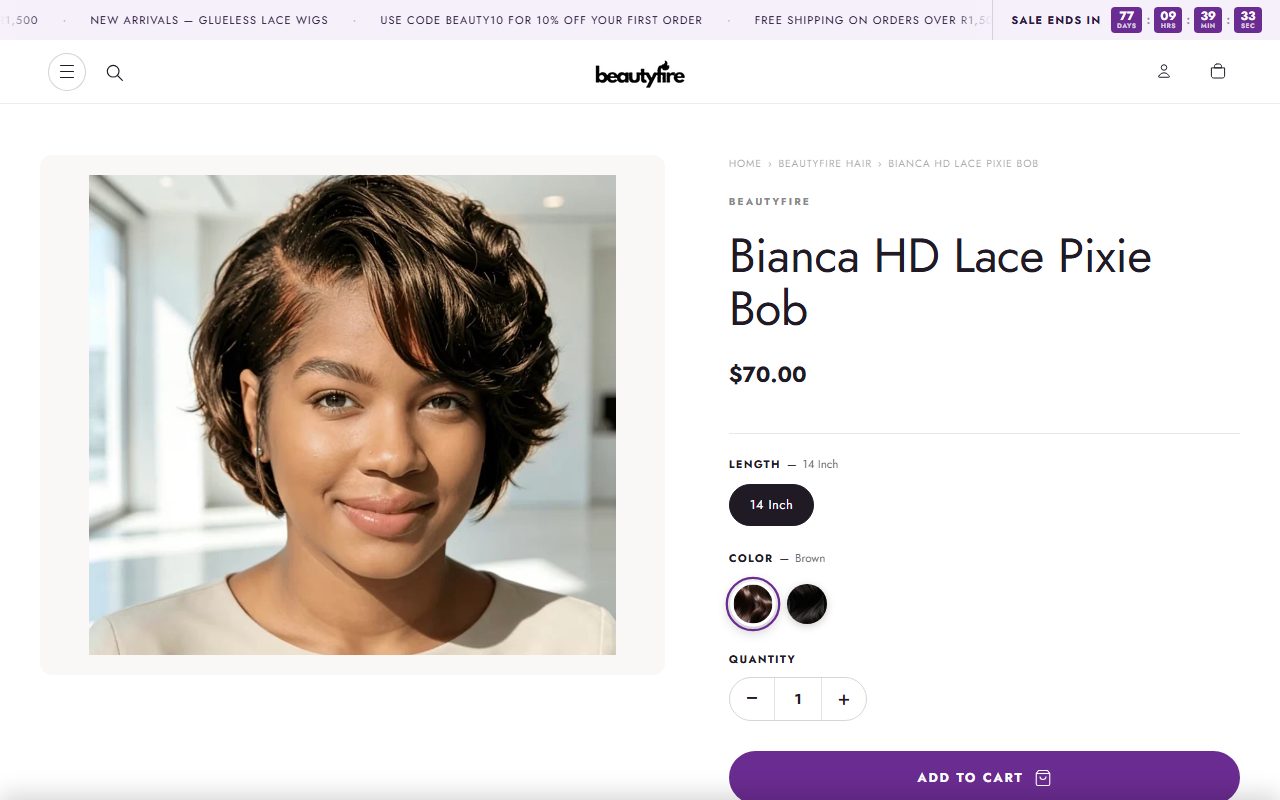
Open a product in the editor with the page picker at the top: Products › Default product.
| Feature | How to set it up |
|---|---|
| Colour swatches | In Shopify admin, edit the product's Color option and set a swatch for each value. If a value has no swatch, Beautyfire picks a matching colour from common hair colour names such as 1B, Jet black, 613, Honey blonde, 99J, Burgundy, Auburn, Ombre and Grey. |
| Other options | Length, density, lace and cap size show as buttons, so shoppers see every choice at a glance. |
| Low-stock counter | Shows "Only X left" when stock is at or below your number. Requires Shopify to track the product's inventory. |
| Delivery estimate | A short line near the price, for example "Delivered in 3–5 business days". |
| Size guide | Turn on Enable size guide modal and write your cap size chart in Size guide content. A Size guide link appears by the options and opens the chart in a pop-up. |
| Info tabs | Hair details, Wear & care, and Shipping & returns tabs, each written once and shown on every product. |
| Buy buttons | Add to cart, plus Shopify's accelerated checkout buttons (Shop Pay, PayPal and others) when enabled in your payment settings. |
| Gift cards and subscriptions | Gift card products show a recipient form. Products with selling plans show their subscription options. |
| App blocks | Add blocks from reviews, upsell or size apps with Add block inside the product section. |
Section library
Every section below can be added to the home page and to most other pages with Add section. Each one has its own colours and top and bottom padding.
Heroes and banners
HeroImage and video slideshow
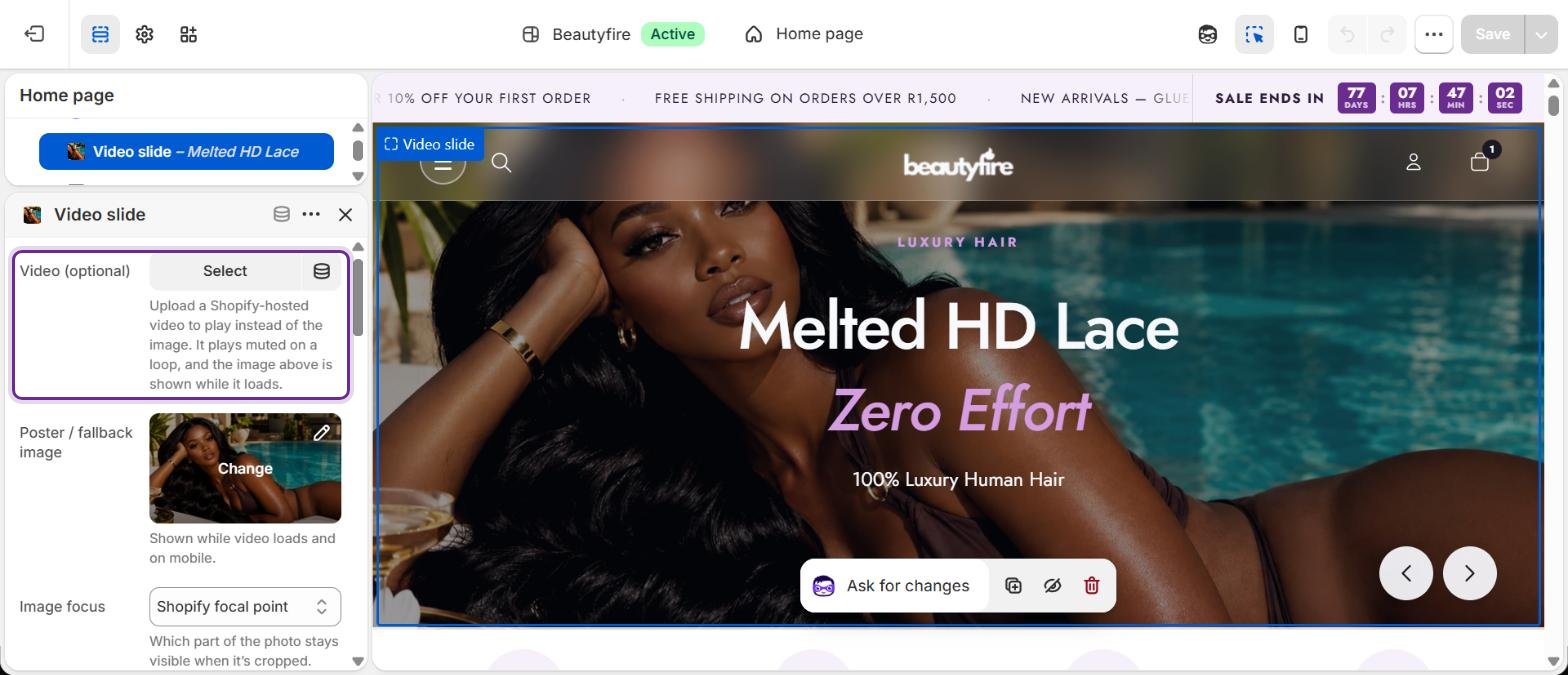
Add Image slide or Video slide blocks. Set the slideshow height separately for phones and desktop (40–150% of the screen height). Each slide can override the height and can play a Shopify-hosted video, with the image used as its cover.
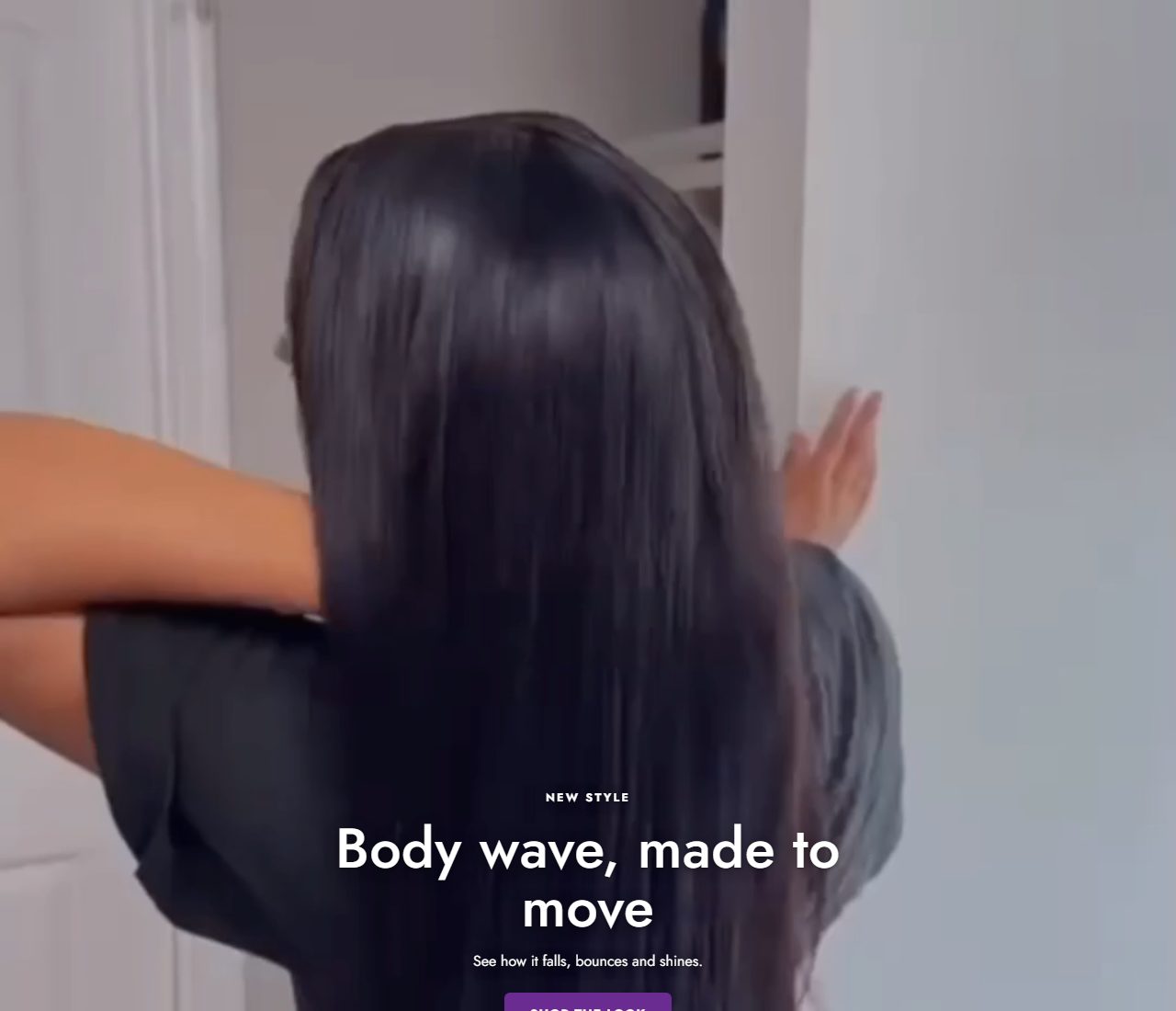
Video heroFull-width looping video
Upload a video (and an optional separate phone video). Choose the heading font, sizes and colours, up to two buttons, a sound button and a Shop this look product card. Phones get their own height setting.
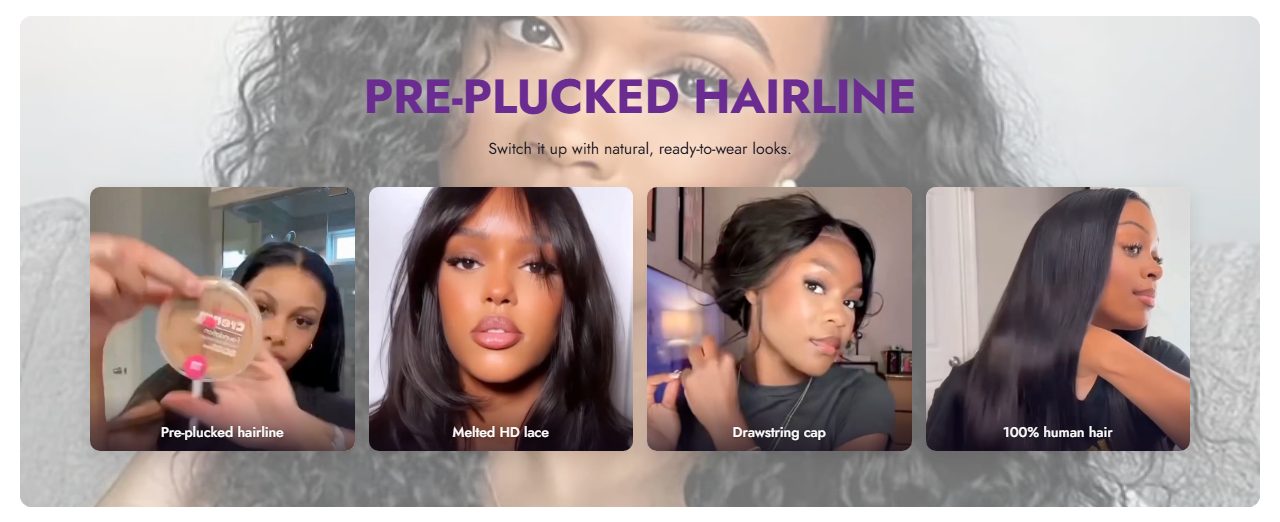
Feature bannerBackground image with video or photo tiles
A heading over a background image, with Feature tile blocks underneath, for example "Pre-plucked hairline" or "Melted HD lace". Tile videos only play while on screen, which keeps the page fast.
Glass parallax hero, Parallax banner, Promo bannerAlternative banners
Glass parallax hero floats four round photos behind frosted text. Parallax banner is a tall image that moves slower than the page. Promo banner pairs a photo with a coloured panel and button.
Wigs and products
Wig showcaseThe main wig grid with 3-frame cards
Add one Wig block per card and pick the product, then upload Frame 1 (main photo), Frame 2 (second angle) and Frame 3 (circle video). Use Fill from a collection to fill the remaining cards automatically. Number of cards sets the total. Choose 2 columns or a swipeable row on phones.
Wig featureOne large wig card
Spotlight a single wig with the same three frames and up to 5 extra photos. Set the card width and position.
Bestsellers, Our products, Catalogue, Products sliderMore ways to list products
Bestsellers shows products in circles. Our products is a simple grid. Catalogue shows up to 5 collections as tabs. Products slider is a full-width slideshow of featured products.
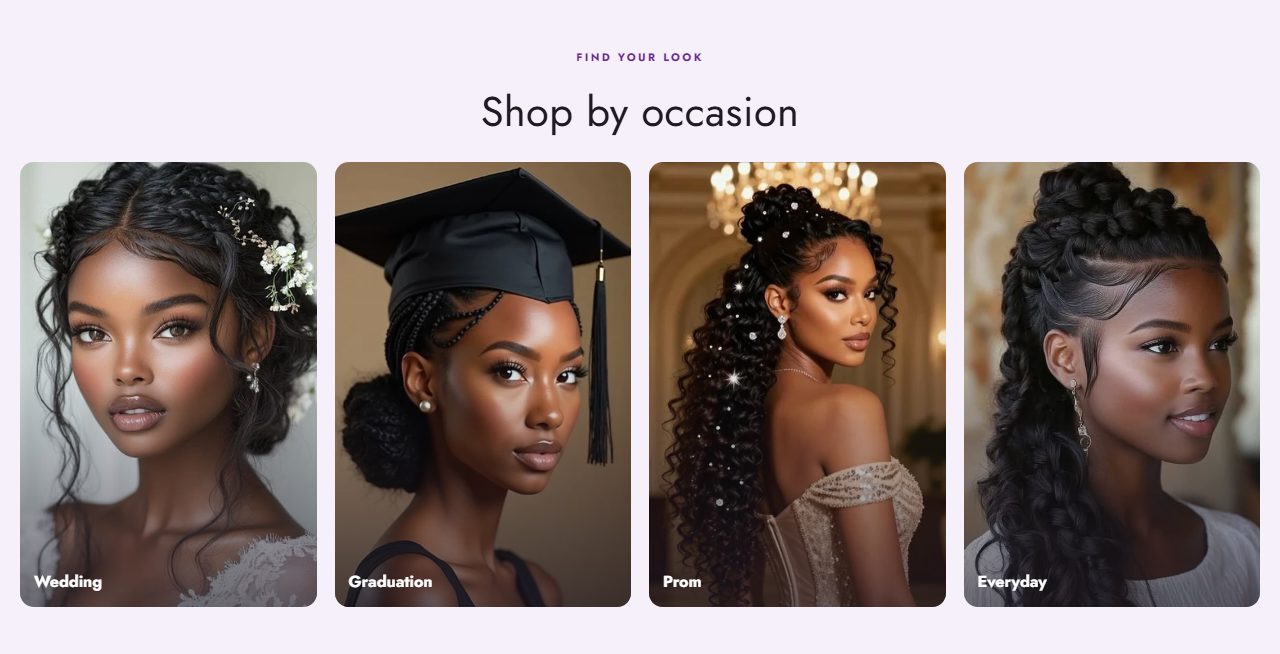
Featured collections, Collections grid, Shop by occasionHelp shoppers browse
Link to collections with image cards. Shop by occasion uses tall photo cards, for example Wedding, Graduation, Prom and Everyday.
Shop by brandMoving carousel of brand circles
Add a Brand block per brand with a logo or photo and a link. Choose the circle size, speed, and whether the row moves on its own. Hovering or touching pauses it.

Shoppable media
Shoppable reelsShort vertical videos with products
Add a Reel block per video and attach products. Videos play while on screen, and only one plays sound at a time. Products can be added to the cart without leaving the page.
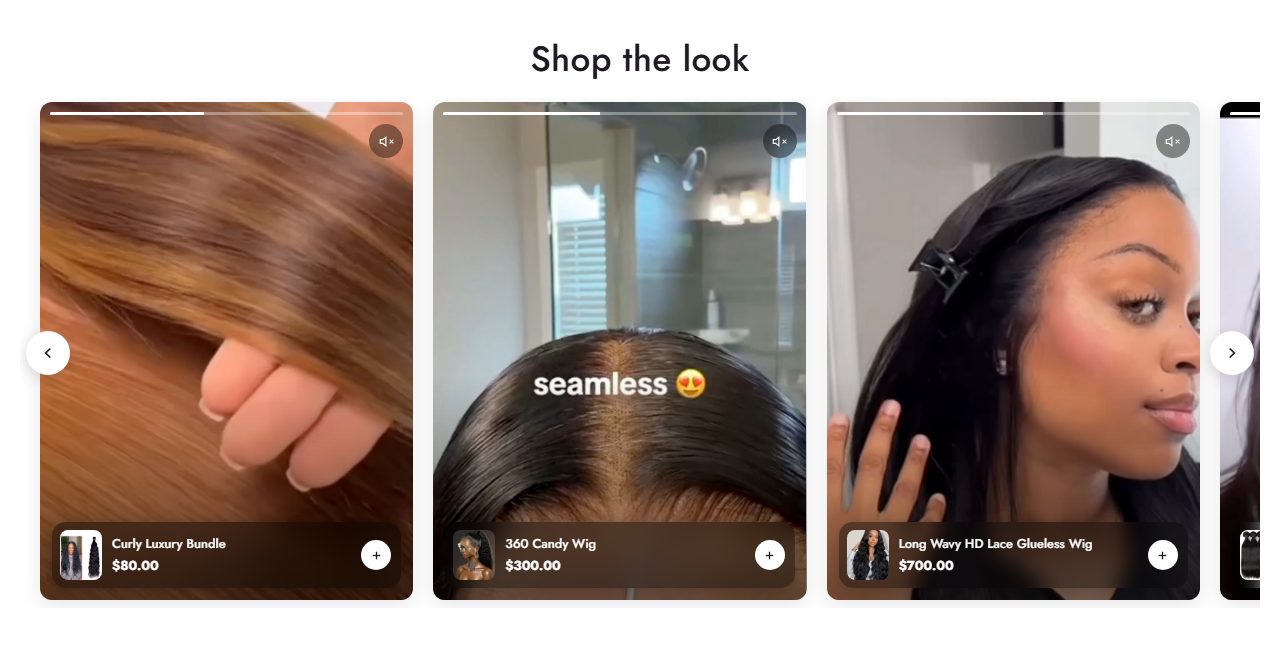
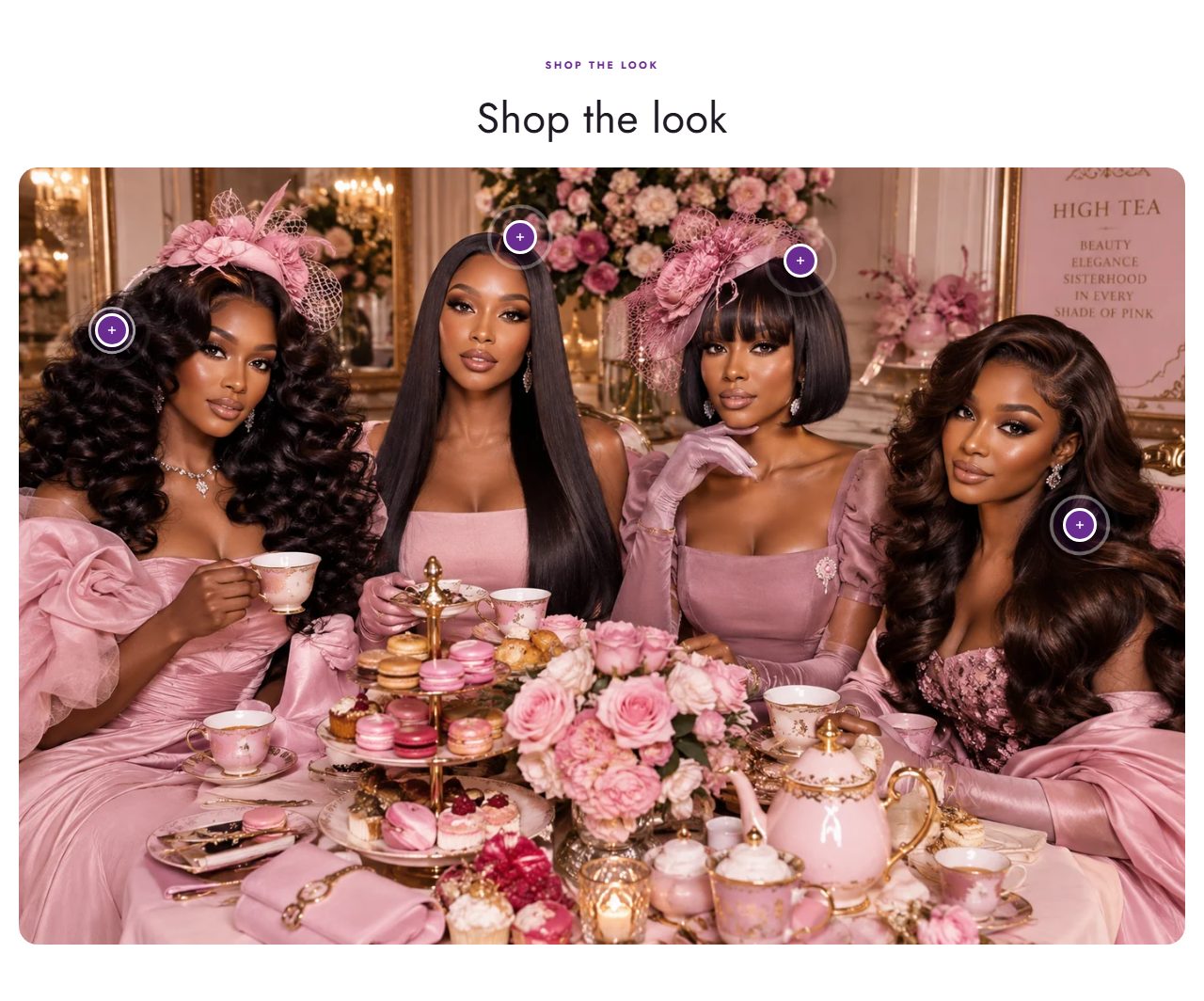
Image hotspotTag products on a photo
Upload a lifestyle photo and add a Hotspot block per product. Set its position with the left–right and top–bottom sliders. Pins can ripple, beat or stay still. On phones the photo runs edge to edge.
Shop the look, Shoppable video, Video showcase, Feature vlog, Premium hairMore shoppable layouts
Variations for tagging products on images and videos, including YouTube or Vimeo links in Feature vlog.
Trust and story
Trust badges, Brand story, Brand pillarsExplain why to buy from you
Badges for shipping, returns and quality; an image-and-text story block; and round photo pillars for your values.

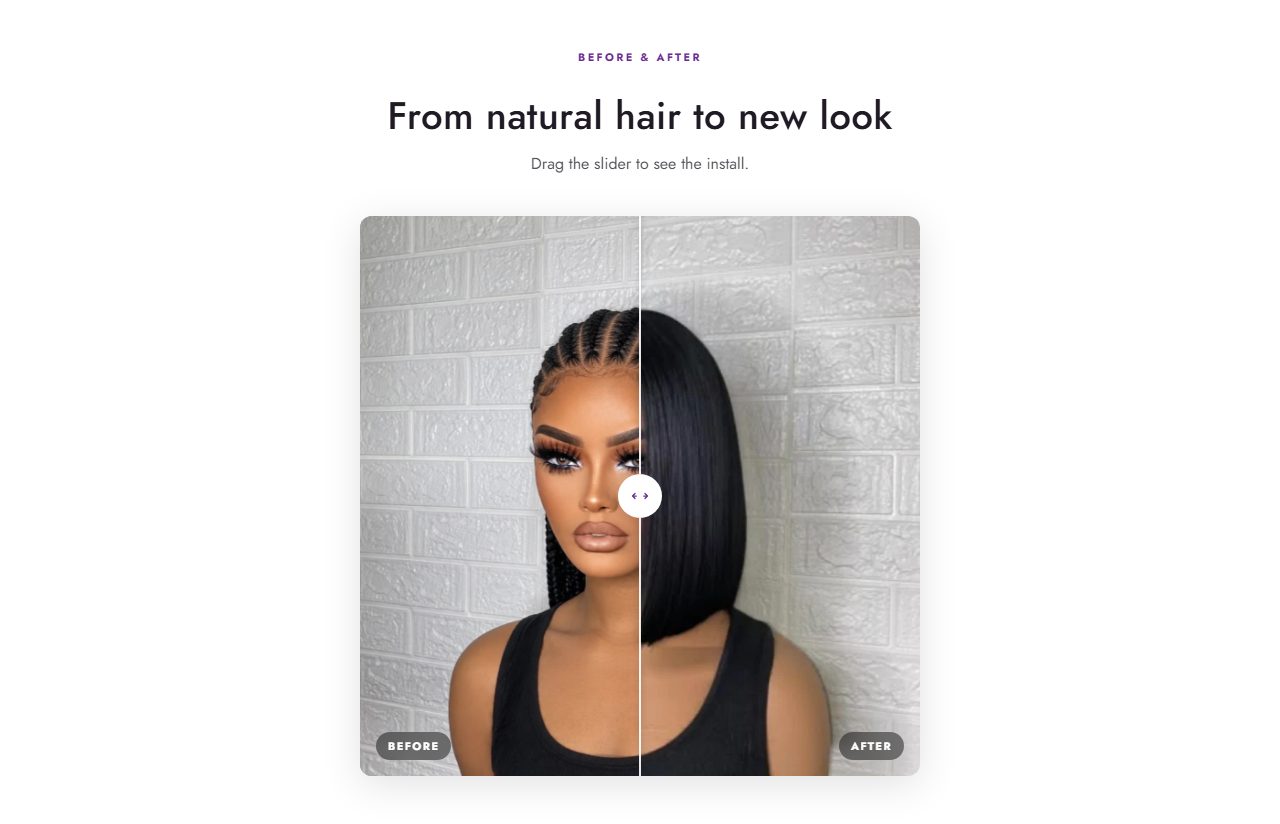
Before / after comparisonDrag slider between two photos
Show natural hair next to the installed wig. Add Product Used blocks to link the wig shown.
Hair details table, Product benefits, FAQAnswer questions before they're asked
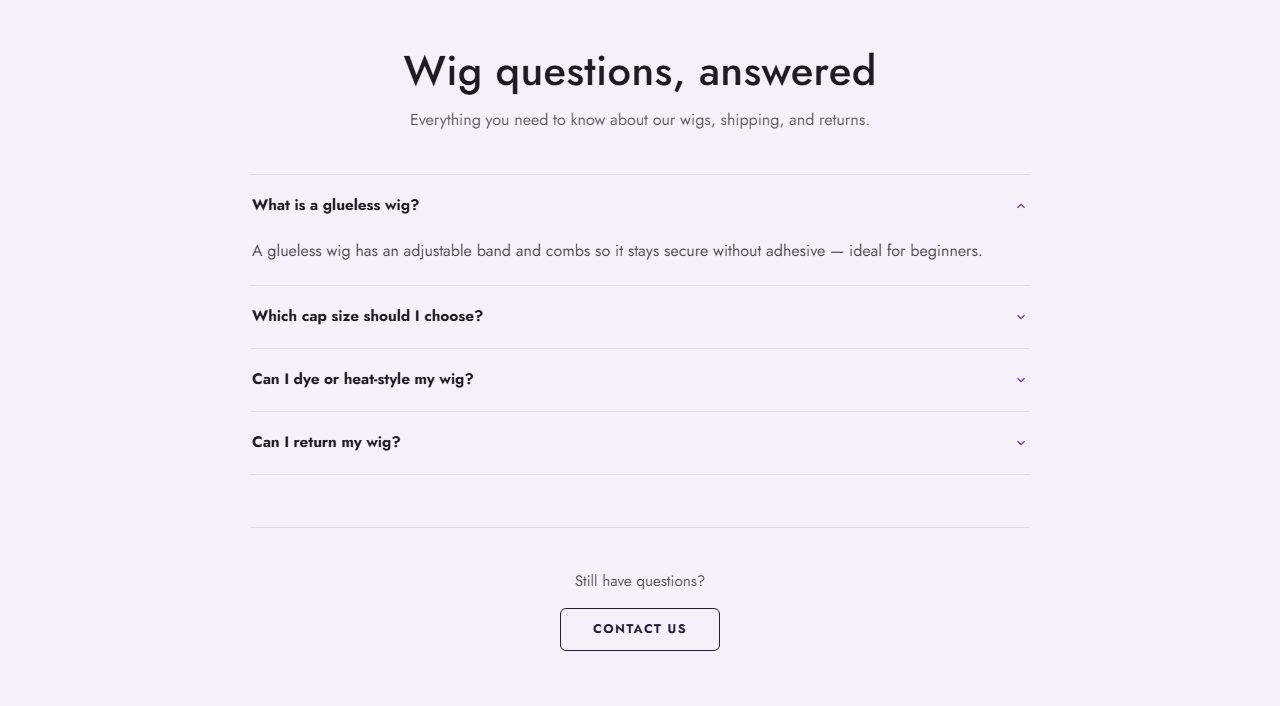
A table for hair type, density and cap details; benefits arranged around a product; and a searchable FAQ with a contact link at the end.
Utility
Contact form, Custom Liquid, Custom sectionPages and custom content
The contact form includes an optional store info panel with address, opening hours and a map. Custom Liquid accepts your own code. Custom section holds app blocks and theme blocks.
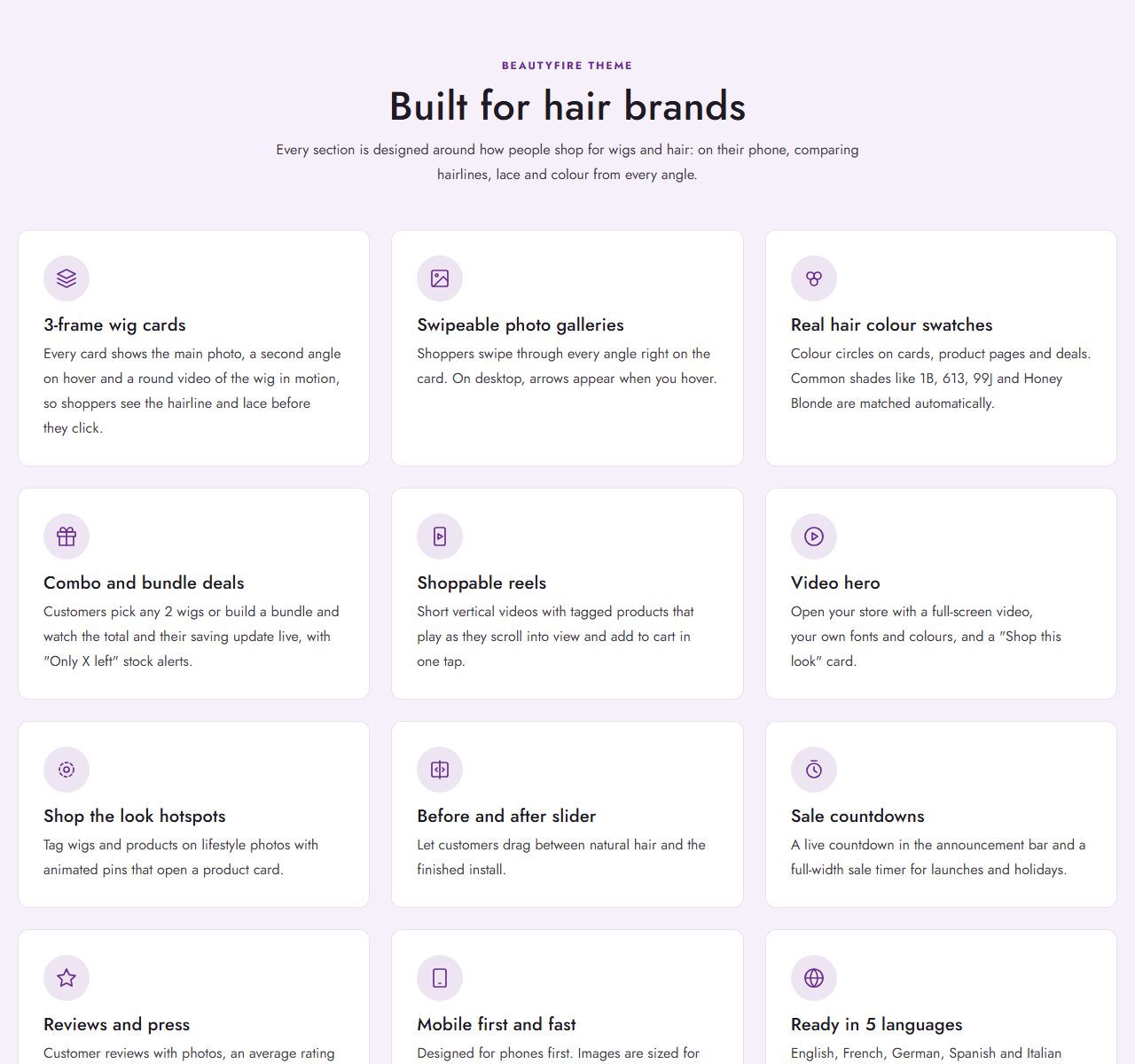
The Feature grid section lists features as cards with icons. The Theme Features page uses it:
Deals and bundles
Combo deal
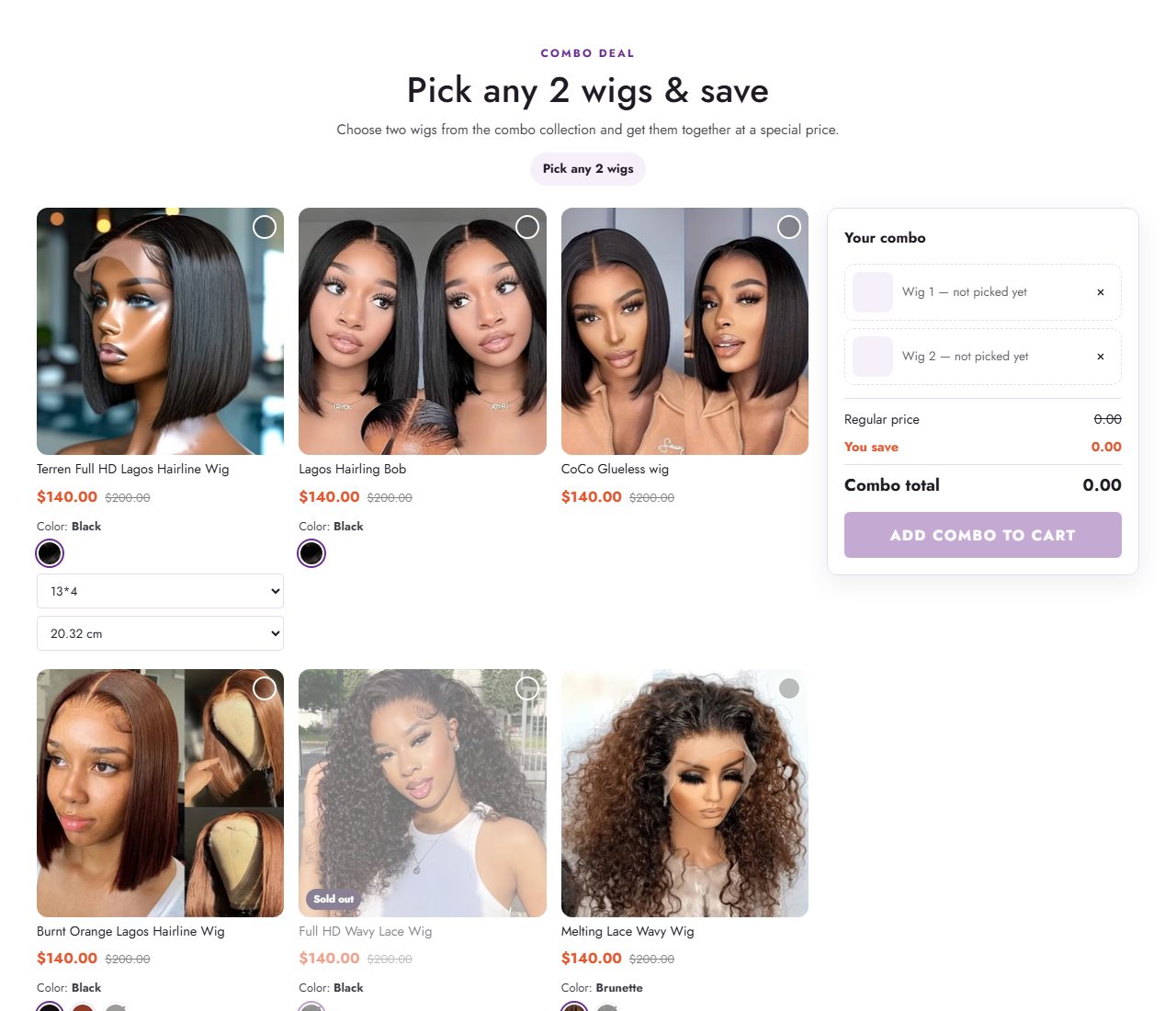
Shoppers pick any 2 wigs from a collection and see the combined price, the regular price and their saving before adding both to the cart together.
- Create a collection with the wigs in the deal and set each wig's combo price as its price, with the regular price as Compare-at price.
- Add the Combo deal section and choose that collection.
- Colours show as swatch circles; other options (length, density) show as dropdowns. Set Show "Only X left" at or below to display low stock.
Bundle deal
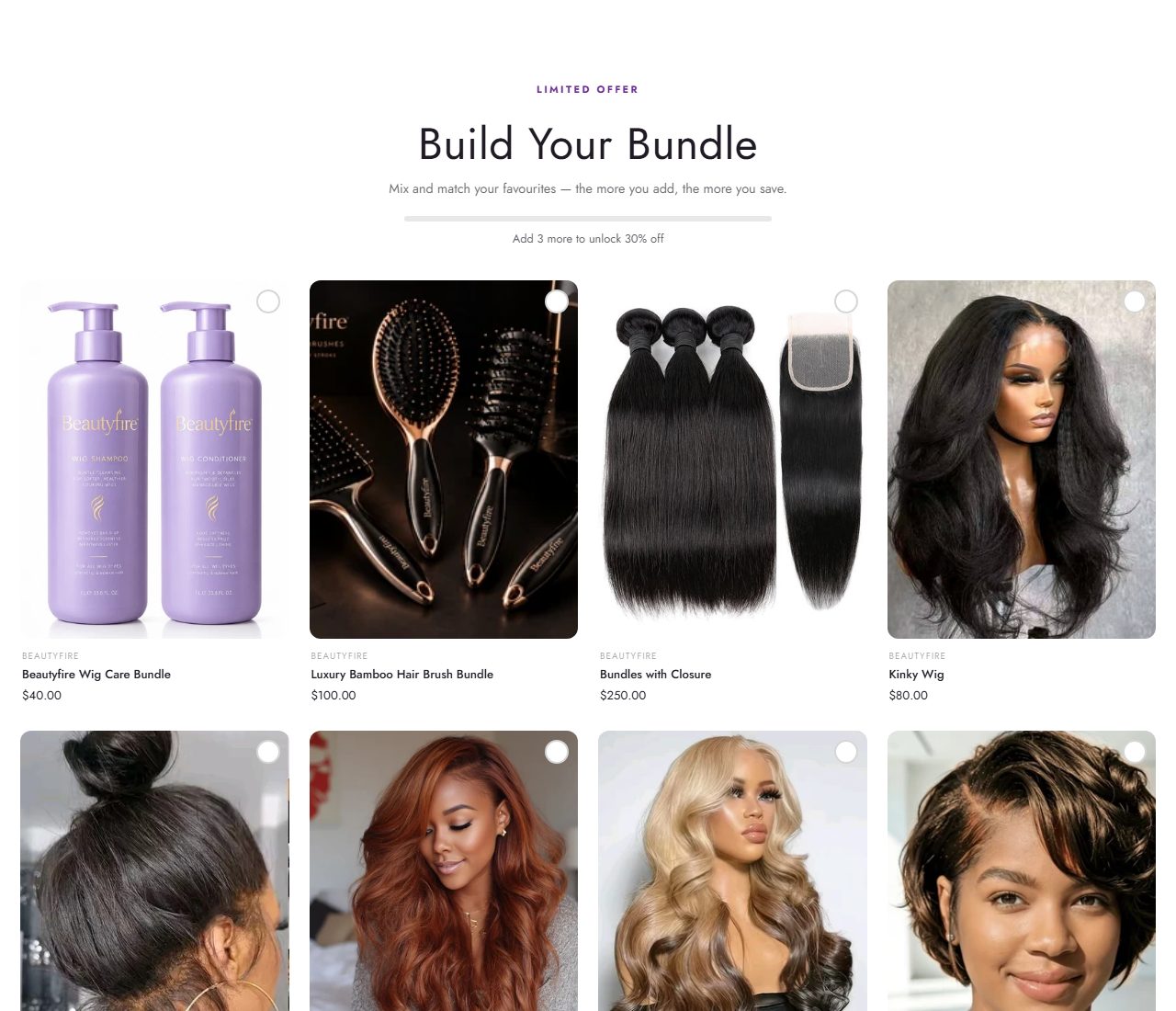
Shoppers build a bundle from up to 8 products. Set the Minimum items for discount and Discount percentage to show the saving as they add items.
Countdown timer
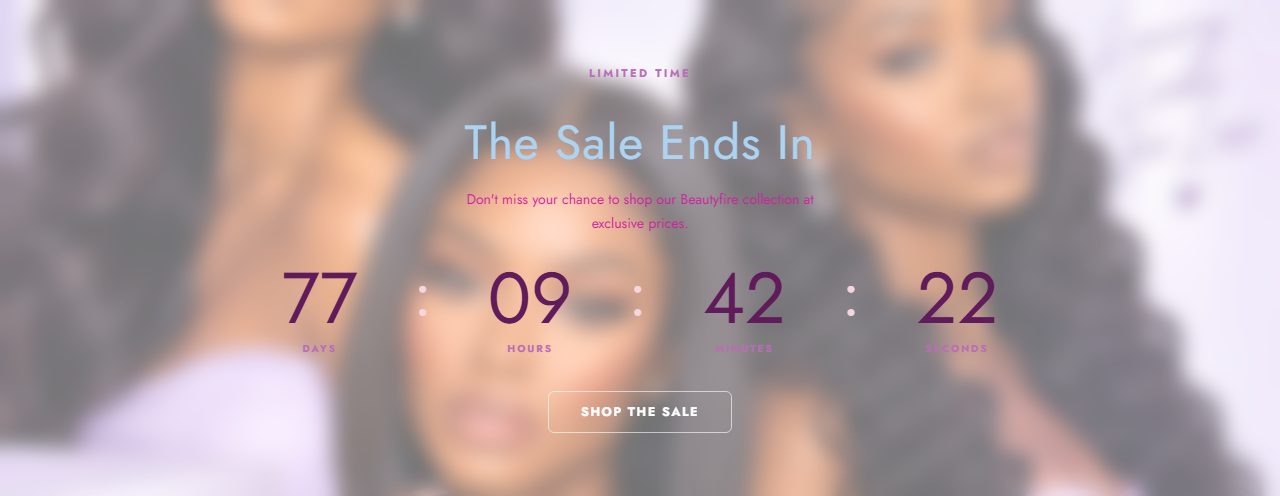
A full-width sale countdown with a frosted background image. Enter the end date and time, a message to show when it expires, and link the button to a sale product or collection.
Reviews and testimonials
The Testimonials section shows customer reviews as swipeable cards with a round customer photo, star rating, headline and quote.
- Review blocks: copy in genuine customer reviews, upload the customer's photo and link the product they bought. Without a photo, the circle shows their first initial.
- Rating summary: pick a collection and Beautyfire averages the star ratings that your reviews app saves on each product (the standard
reviews.ratingandreviews.rating_countmetafields used by Judge.me, Yotpo, Loox and Shopify Product Reviews). - App block: add your reviews app's own widget with Add block.
Star ratings on wig cards come from the same metafields. Turn them on in Theme settings › Product cards.
Cart and checkout
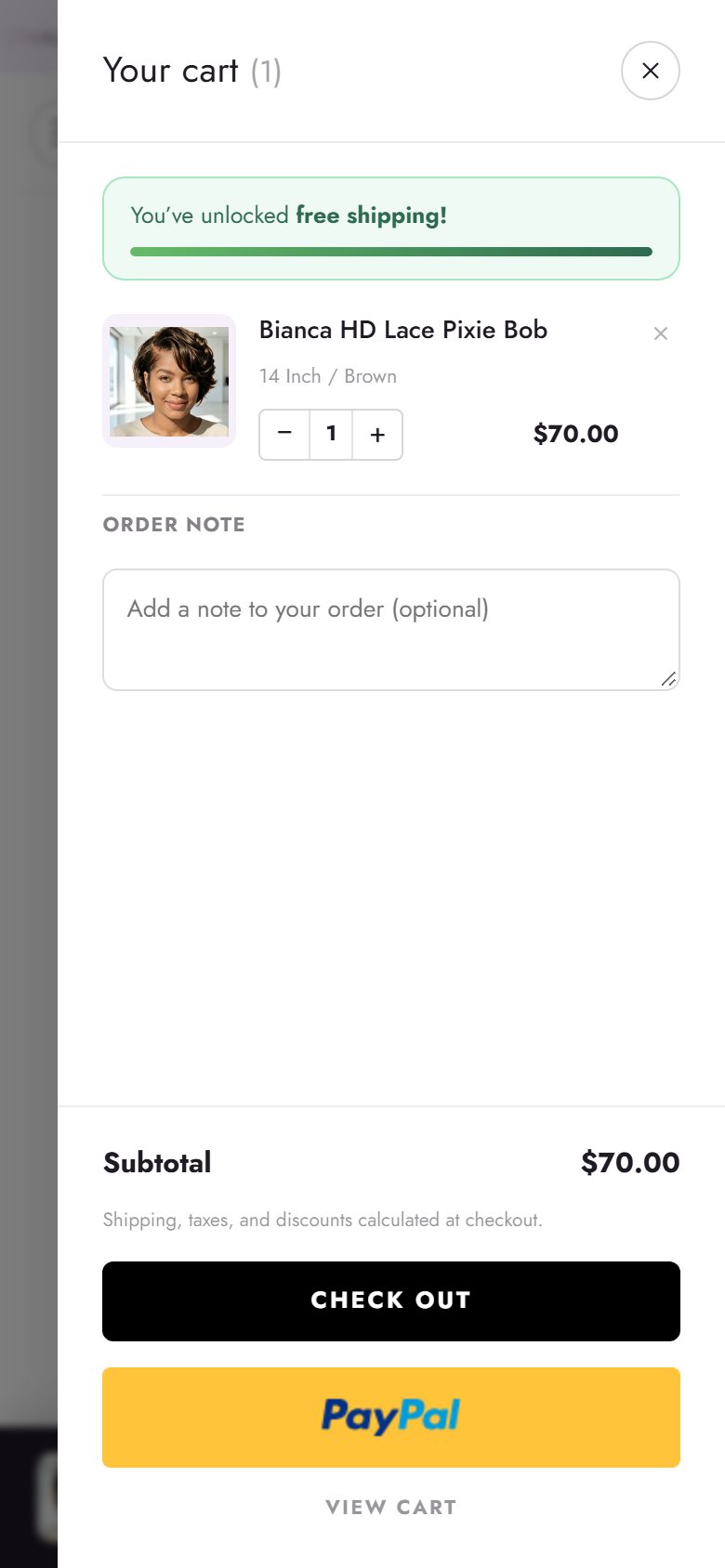
- Cart drawer: slides in when a product is added, so shoppers keep browsing. Set a Free shipping threshold to show a progress bar ("Spend R250 more for free shipping"), and pick an optional Gift wrap product.
- Cart page: has the same free-shipping bar and supports app blocks.
- Discount codes: shoppers enter codes at checkout. You can also share a link that applies a code automatically:
your-store.com/discount/CODE.
Footer, press logos and pop-up
Footer
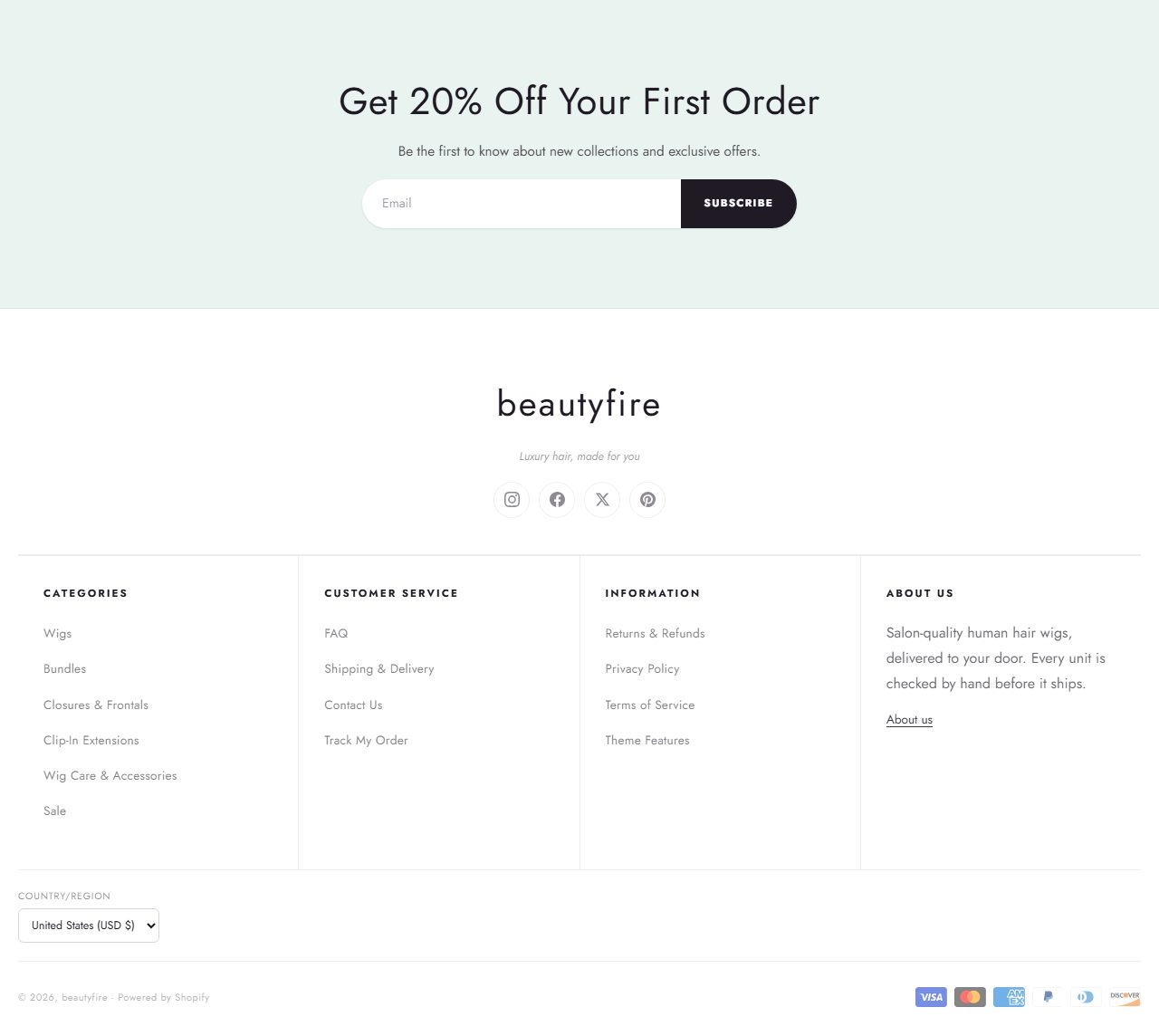
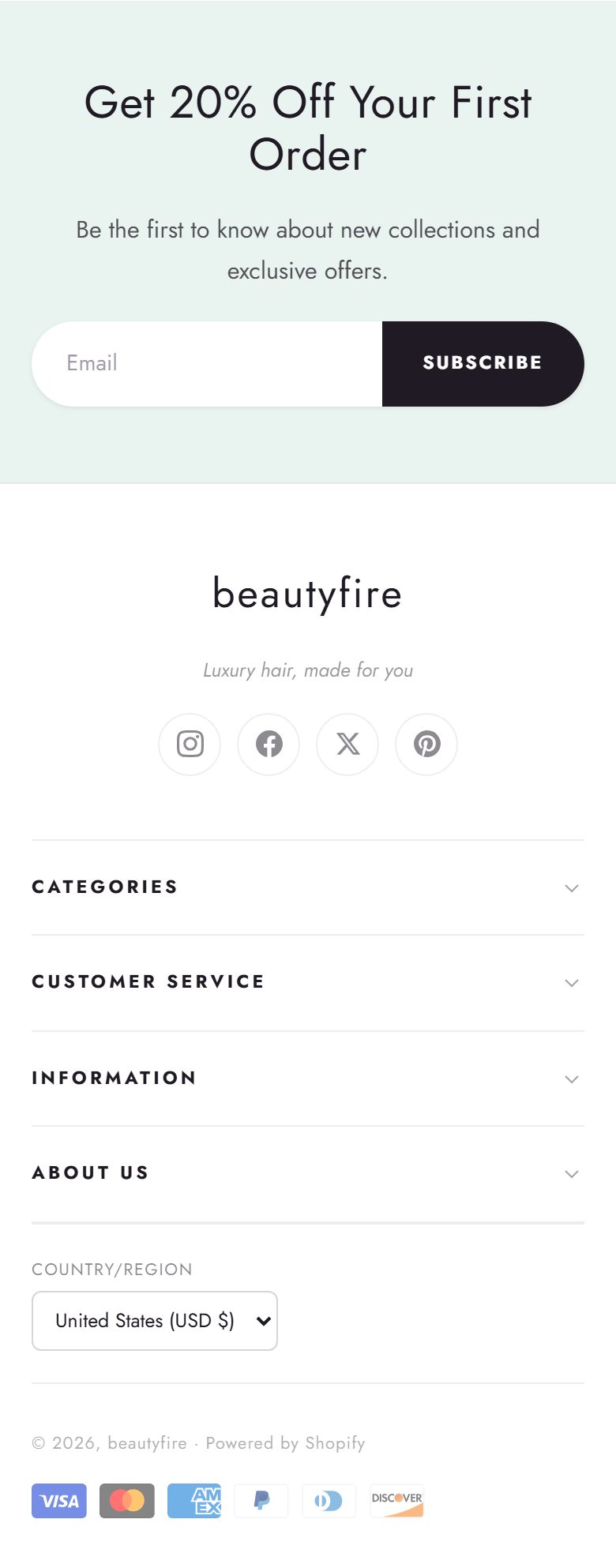
Includes a newsletter sign-up band, up to four link columns (add Footer link blocks and choose a column), an About column, your brand tagline, social links and payment icons.
Press logos
A "Featured in" strip. Add a Logo block per publication and upload a PNG or SVG with a transparent background so it floats on the section colour. Set logos per row for desktop and phones, logo height, divider lines, black-and-white logos, arrows and auto-scroll. Only use logos of publications that have actually featured your brand.
Newsletter pop-up
Opens after a delay or, on desktop, when the shopper moves to leave the page. Choose how many days to wait before showing it again. Shoppers who subscribe never see it again, and the sign-up adds them to your customer list as email subscribers.
Pages and menus
Pages such as About, Shipping and returns, FAQ and Theme Features live in Online Store › Pages.
- Add a page. Click Add page, give it a title and write the content.
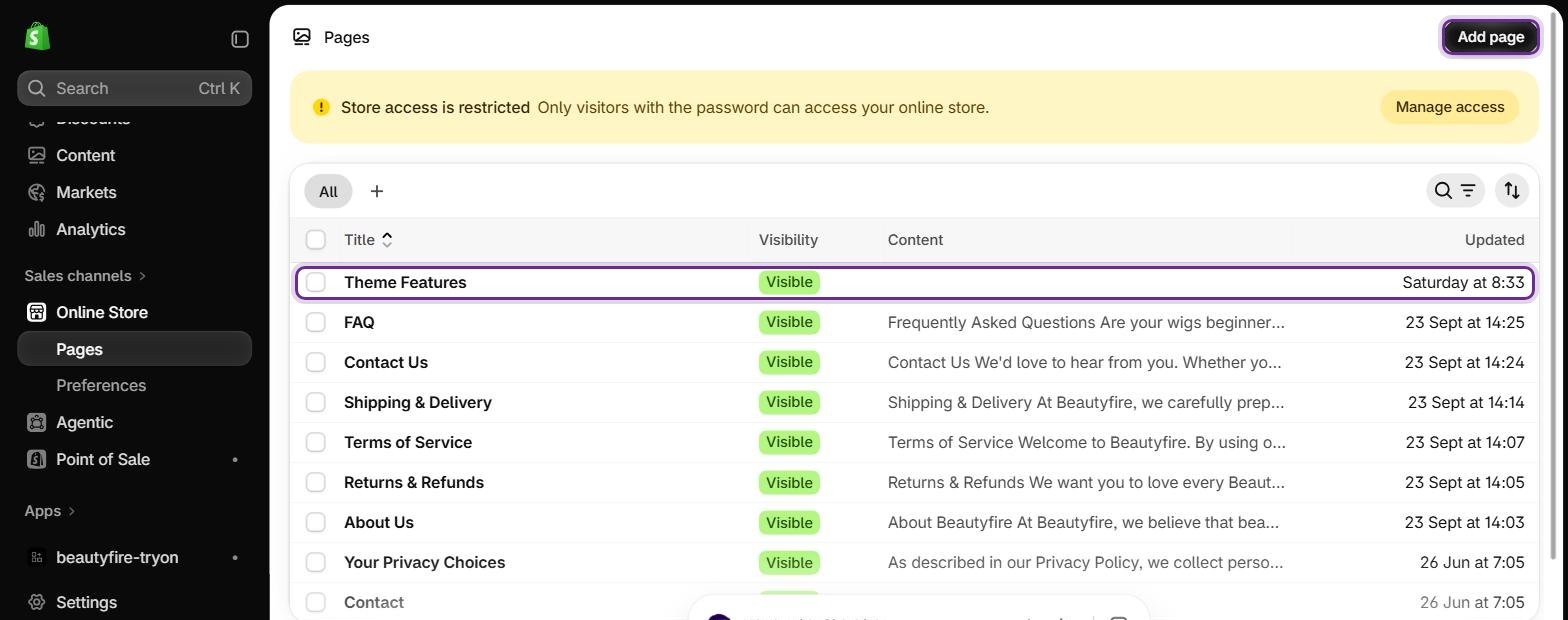
Online Store › Pages: your pages and the Add page button. - Choose its template. On the right, pick a Template: Default page, contact, or features (the Feature grid page). Click Save.
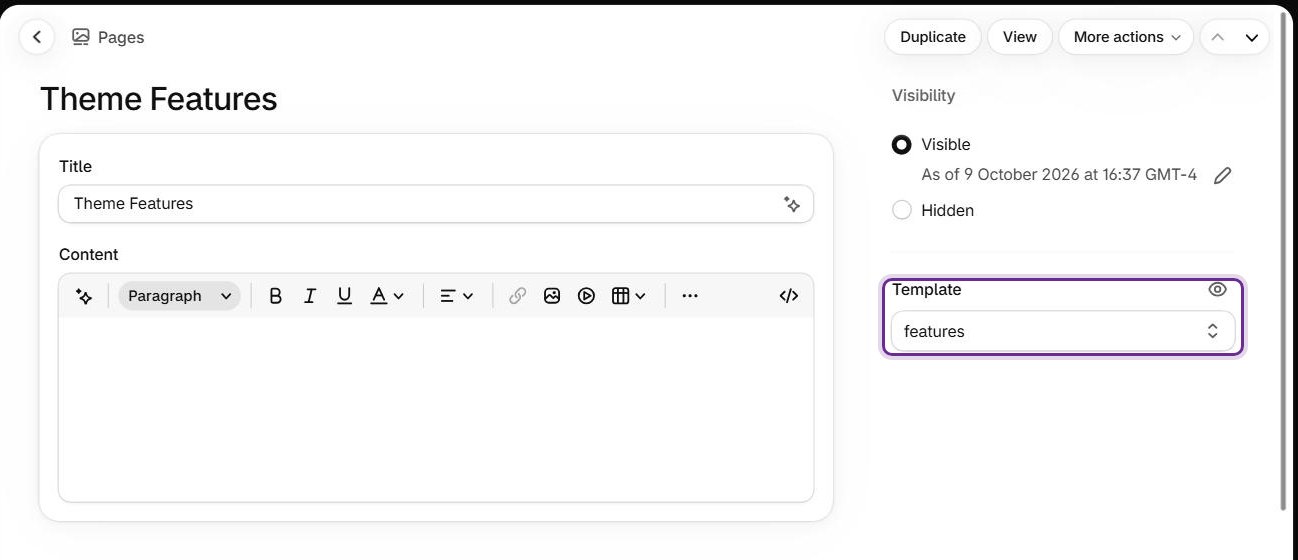
The Template dropdown on a page. "features" uses the Feature grid layout. - Add it to a menu. In Content › Menus, open Main menu or Footer menu, click Add menu item and pick the page.
- Show the menu in the header. In the theme editor select Header and choose your menu under Menu. If the phone menu looks empty, this is the setting to check.
View live demo
See every Beautyfire section working in a real store: wig cards, swatches, deals, reels and the full shopping flow on your phone or computer.
Apps and metafields
- App blocks can be added to the product page, cart, cart drawer, footer, testimonials and the Custom section.
- App embeds (chat, pop-ups, tracking) are turned on in Theme settings › App embeds.
- Option swatches use Shopify's built-in swatch fields, so no app is needed for colour circles.
Speed and accessibility
- Images are served in the right size for each screen and load as shoppers scroll.
- Background videos play only while visible and pause when scrolled away. Keep videos short (under 15 seconds) and upload them to Shopify rather than linking large files.
- Use at most one autoplaying video in the first screen of the home page.
- All pop-ups and drawers can be closed with the Escape key and keep keyboard focus inside them while open.
- Add alt text to your images in Shopify admin; Beautyfire uses it for screen readers.
- Animations and auto-moving carousels stop for shoppers who ask their device to reduce motion.
Troubleshooting
Colour circles all look the same colour
Set a swatch for each value of the product's Color option in Shopify admin, or name the colours with common hair colour names (for example Honey blonde or 1B).
A video doesn't play on iPhone
Upload the video to Shopify (Content › Files) instead of using a link, and keep it under about 20 MB. iPhones in Low Power Mode pause background videos; the cover image shows instead.
The combo or bundle price isn't charged at checkout
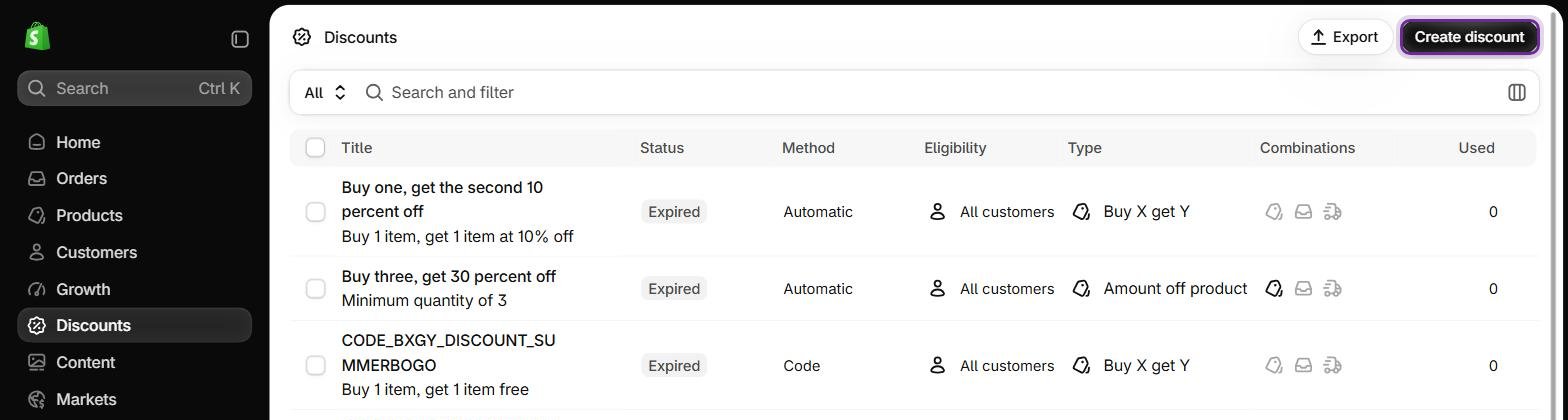
Create the matching automatic discount in Shopify admin. Sections show the offer; Shopify's discounts apply it.
The testimonials section disappeared
It hides itself when it has no reviews and no rating data, so the store never shows an empty block. Add a Review block or choose a collection for the rating summary.
The header covers the top of my first section
Glass and Transparent header styles float over the first home page section by design. Choose Solid in Header settings, or give your first image some empty space at the top.
Support
Get help on the Beautyfire support page, where you can chat with us and get an answer in seconds. You can also email noxy.skye@gmail.com with your store address and a screenshot of what you see.
Support covers theme settings, sections and bugs in the theme. It doesn't cover custom code changes, third-party apps or general Shopify questions, which Shopify Help Center can answer.